
Choose your next puzzle · Six fields for the next picture
Keep a Jigsaw Puzzle Journal You Will Actually Use
Quick summary
Give your jigsaw puzzle journal a job. Record which picture details you enjoyed, what surprised you and what you want to try next. A few specific phrases can help when you are choosing between pictures.
This guide includes an original, free jigsaw puzzle log template for your own notes app or a plain text file. The three completed examples are invented for explanation. JigsawPuzzle.pro does not provide a journal editor or journal export feature.
Key takeaways
- 01Keep the same six fields so entries are easy to compare.
- 02Describe visible picture details and connect them to your next choice.
- 03Keep notes in your own tool, separate from browser puzzle saves.
Decide what you want to remember
Start with the choice you want help making. You might want more pictures with distinct buildings, or fewer nearly identical leaves. Write that aim at the top of your notes so you know what to record after playing.
The USA Jigsaw Puzzle Association offers a downloadable Puzzler Log on its resources page. We checked that page while preparing this guide. Our template below is an original preference-focused format, designed around choosing pictures rather than recording competition results.
Choose a place you already use for short notes. A text document or a page in your usual notes app is enough. Name it Puzzle journal and keep all entries together. There is no need to buy a notebook or set up a new account before trying the first entry.
Copy a short preference-focused log
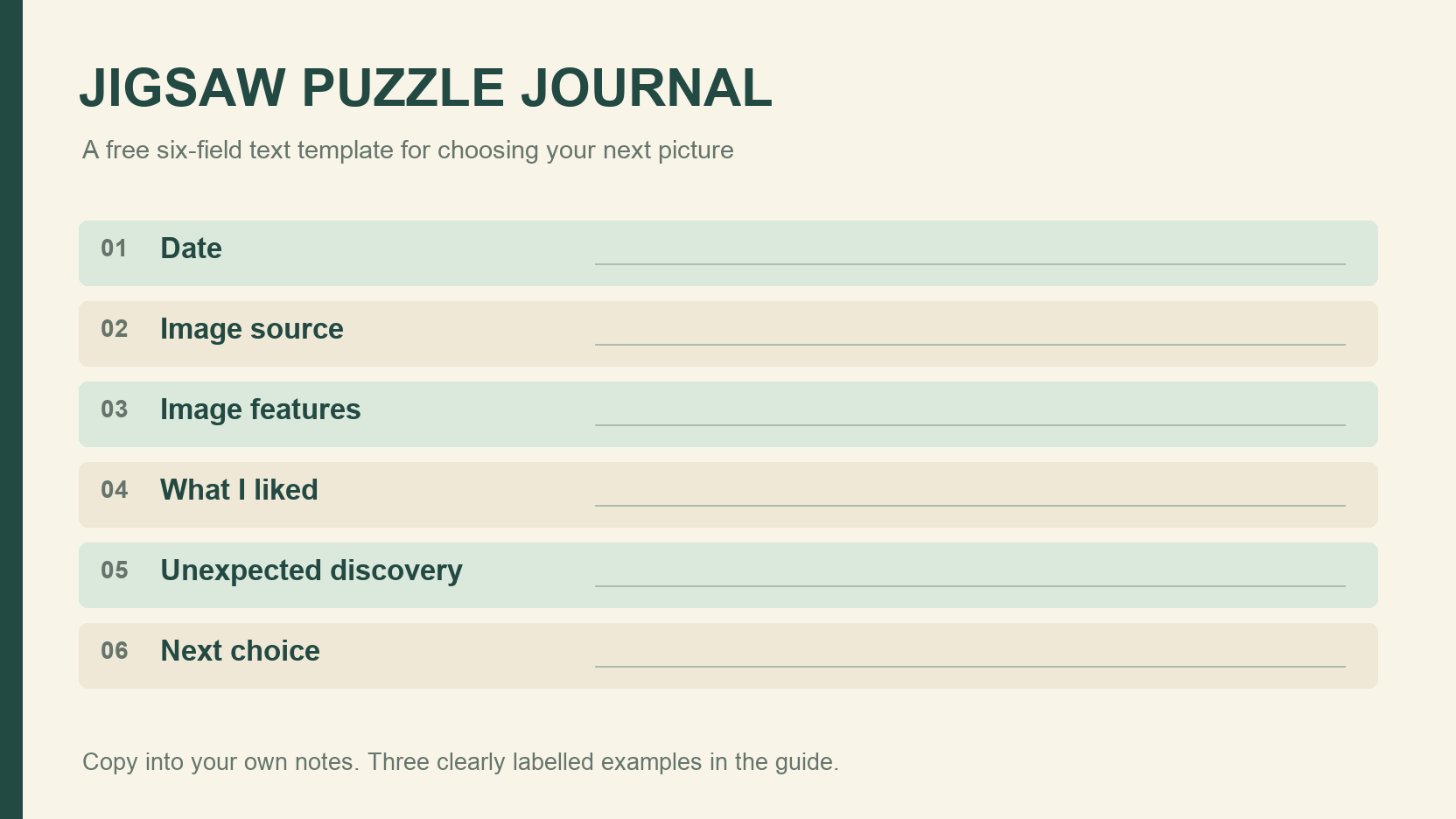
Use these six fields as a repeatable entry. Copy the blank lines into your own document, or download the plain text version. The file contains labels and blank spaces only, and you fill it in yourself.
- Date | ____________________
- Image source | ____________________
- Image features | ____________________
- What I liked | ____________________
- Unexpected discovery | ____________________
- Next choice | ____________________
Download the free six-field text log template.
Use a consistent date format such as YYYY-MM-DD. For Image source, include enough information to find the picture again. A gallery title and page address can help. For your own photo, use its filename or a description you recognize. Add a credit or permission note here when relevant.
Image features records what is visibly present. Mention a strong outline, repeated objects, broad sky or small differences in texture. Under What I liked, explain which part you enjoyed working with. Separating these fields helps you distinguish the picture from your reaction to it.
Unexpected discovery can hold a detail you missed in the preview, or a feature that affected the experience. Next choice should name one practical change. Leave a field blank when nothing useful comes to mind. You can return to it after another session.
Write a useful note after finishing
Write while the picture is easy to recall. Pick one area that held your attention and describe what happened there. Naming the little variations between window frames gives you a feature to look for again. Calling the whole picture nice leaves that detail out.
If you stopped early, say so in the note and record what you have noticed so far. An unfinished session can still reveal that a subject interests you, or that a particular area is hard to see. Keep the reason specific to that session instead of declaring an entire category unsuitable.
Keep timing optional and outside the six-field format. This puzzle experience journal is about what you want to see and do next. It does not need completion totals, a score or a chart to be useful.
Three original examples of completed entries
All three entries below, including their dates and image references, are invented teaching examples. They are not customer records or reports of our own completed games. The imaginary pictures do not identify current gallery listings.
| Date | Image source | Image features | What I liked | Unexpected discovery | Next choice |
|---|---|---|---|---|---|
| 2026-10-27 | Imaginary personal photo of a balcony planter | Red flowers against a plain wall | Following the outline of each bloom | Several leaves looked almost identical | Choose larger flowers with varied leaf shapes |
| 2026-10-28 | Imaginary gallery picture of a woodland stream | Dark foliage and a bright ribbon of water | Tracing the water through the picture | The shadowed corners were tiring to inspect | Look for woodland scenes with brighter corners |
| 2026-10-29 | Imaginary personal photo of shopfronts | Distinct signs above repeated windows | Matching small differences between storefronts | The windows were enjoyable once the signs gave me landmarks | Try another street scene with readable visual differences |
Each final field follows from the preceding notes. The planter example keeps flowers but changes the foliage. The woodland example asks for better-lit corners. In the shopfront entry, small differences made the repetition enjoyable, so the next choice keeps that feature.
Choose the next picture from your own notes
Read a few entries before opening the gallery. Find one feature that appears in the notes you want to repeat. Then inspect a candidate picture for that feature. A subject label such as nature leaves many possibilities, so check the actual composition as well.
Change one thing when you want a clearer comparison. Keep a familiar subject and choose a different distribution of detail. After the next session, record whether that change suited you. A few entries can guide your next choice; you can revise a preference when a later picture surprises you.
Keep the journal separate from saved progress
In Chrome on October 30, 2026, we checked My Games and its Completed section. Completed cards displayed a picture, title, difficulty and completion date, along with a recorded time. Those details can help identify a session when writing your note. The cards do not contain the six journal fields.
Keep your written entries in your own notes tool. A screenshot may remind you of a picture, but it is not a backup that restores piece positions. A journal entry also cannot reopen an unfinished board or transfer it to another browser.
Use the save-and-resume guide when you need to return to an unfinished board.
For personal photos, a short private description may be all you need. Avoid placing a sensitive photo or its private sharing link into notes you plan to publish. You can share a general observation about a picture without sharing the picture itself.
Conclusion
Open the gallery with one feature from your notes in mind. After trying the picture, add a short entry and give Next choice a concrete answer.
Sources and further reading
Frequently asked questions
Next move
Choose a picture worth writing about
Try the gallery, or check how to return to an existing board.