
Photo troubleshooting · Keep the original, check the copy
HEIC Photo Not Opening in a Jigsaw Puzzle Maker
Quick summary
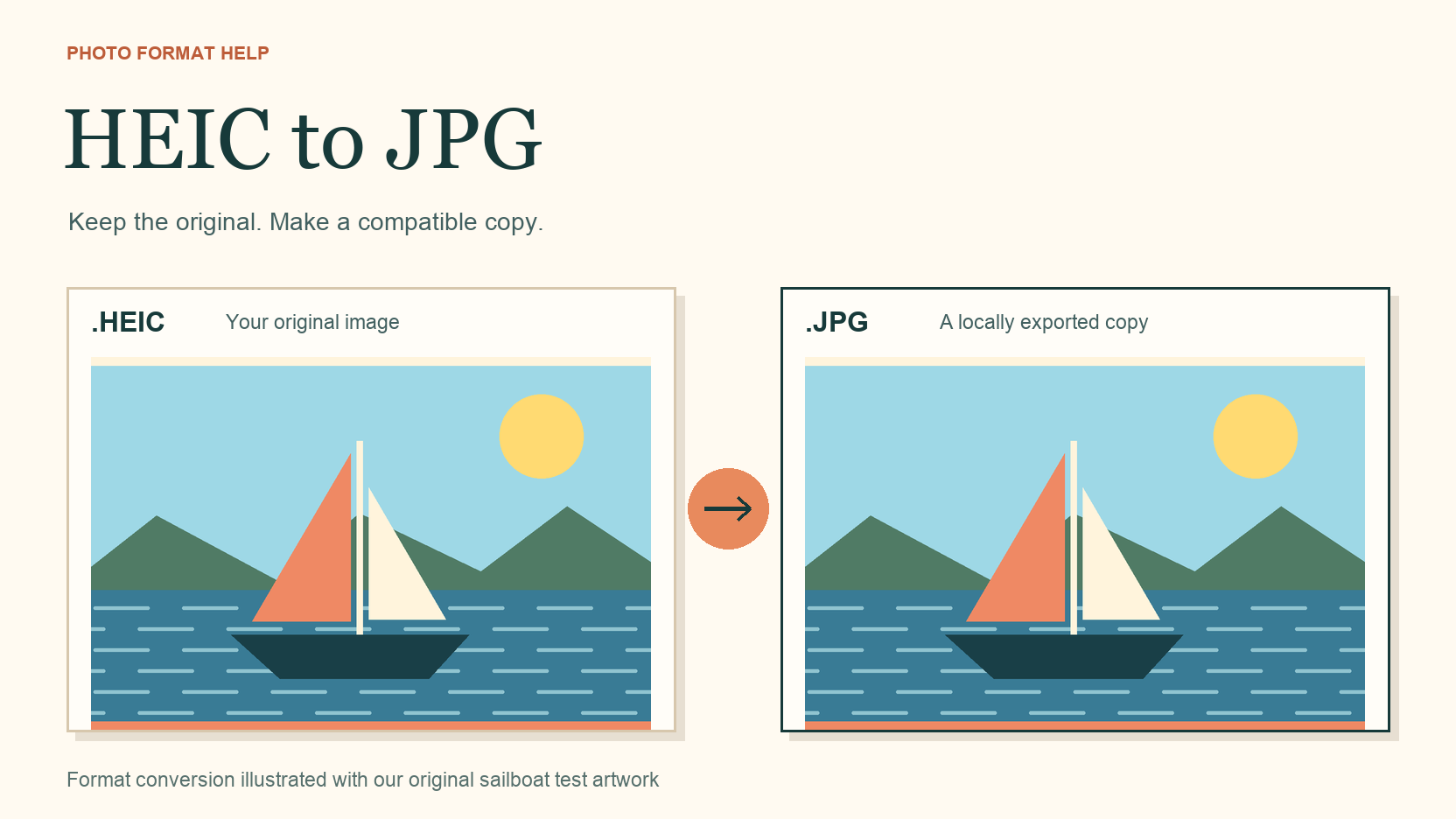
If a HEIC photo puzzle upload fails, keep the original and export a JPEG copy. Upload that copy, then check the picture before starting a long game. Changing the filename alone will not convert it.
JigsawPuzzle.pro accepts HEIC and converts it in the browser. We checked the workflow in Chrome on October 4, 2026, using an original sailboat test image and a JPG exported from the same HEIC file. Both reached a 12-piece game.
Key takeaways
- 01Confirm that the original opens in a compatible image viewer.
- 02A converter loading error needs a different response from an unreadable file.
- 03Apple Preview can save a separate JPEG copy on a Mac.
- 04Compare the exported picture and the game reference before continuing.
Check the file before blaming the puzzle
Open the file you actually selected. If it came from your photo library, check the downloaded copy in Photos or Preview on a compatible Mac. A preview in the library does not confirm that this copy is complete. If the file will not open, download it again before retrying the puzzle.
HEIF is a photo format used by supported Apple devices. An iPhone photo can open normally in Photos while a website still needs a conversion step. The extension gives you a useful clue, but renaming holiday.heic to holiday.jpg leaves the image data unchanged.
Check the file size too. This site accepts files up to 20 MB. A size rejection happens before HEIC conversion, so a different extension will not help. Follow the error you actually see.
How HEIC processing works on this site
The DIY page accepts JPEG, PNG, WebP, and HEIC. For HEIC, the browser loads a conversion helper from jsDelivr, converts the image to JPEG, and prepares it for the game. The difficulty selector opens after processing succeeds. That selector is your first visible confirmation.
When you see Failed to load HEIC converter, the helper script did not load. Keep your original photo. Reload the DIY page and retry once, or export a JPEG locally to skip this HEIC-specific step. Choosing the same file repeatedly without reloading may not recover the failed loader. In our local test, blocking the helper produced this message while the exported JPEG still reached difficulty selection.
| What you see | What to check | Next action |
|---|---|---|
| Original will not open in Preview | The local copy may be incomplete or unreadable. | Get another copy from the photo library. |
| File exceeds 20 MB | The upload limit is checked first. | Prepare a copy within the limit. |
| Failed to load HEIC converter | The conversion helper failed to load. | Reload once or use a locally exported JPEG. |
| Converter loads, but HEIC processing fails | This particular file may not decode successfully. | Export it in Preview and test the JPEG. |
| JPEG works while HEIC fails | The HEIC conversion route needs attention. | Use the working JPEG copy. |
| HEIC and a known-good JPEG both fail | There may be a broader processing problem. | Keep the error text for further troubleshooting. |
Export a JPEG copy with a free local tool
Apple Preview can export a JPEG copy of your HEIC on a Mac. The app is built in, so you can try this without sending the photo to an online converter. Save a separate copy so the original remains available if the export needs another attempt.
- 1
Open the HEIC in Preview.
Confirm that the actual picture appears, including the subject you want to use.
- 2
Choose File > Export.
In the Format menu, select JPEG. If a needed format is missing, Apple advises holding Option while opening the menu.
- 3
Save with a distinct name.
Use a name such as holiday-puzzle.jpg. Choose a JPEG quality setting suitable for your picture and save it somewhere easy to find.
- 4
Open the new JPEG.
Check its orientation and framing, then select this exported file on the DIY page.
For future iPhone photos, Apple documents Settings > Camera > Formats > Most Compatible as the JPEG capture option on supported devices. This changes new captures. Export an existing HEIC separately. You do not need to change your camera settings just to make one puzzle.
Compare the original and converted result
Our test used an original, non-sensitive sailboat illustration saved as harbor-test.heic, then exported locally as harbor-test.jpg with the macOS image conversion tool. Both files were 1200 × 800 pixels. The HEIC was 12,818 bytes and the JPEG was 82,860 bytes. These sizes describe this test image only.
| Test file | Local check | Chrome puzzle result |
|---|---|---|
| harbor-test.heic | macOS decoded it into a JPEG copy. | Conversion completed, difficulty selection opened, and a 12-piece game started. |
| harbor-test.jpg | The exported JPEG opened at 1200 × 800. | Processing completed and another 12-piece game started. |
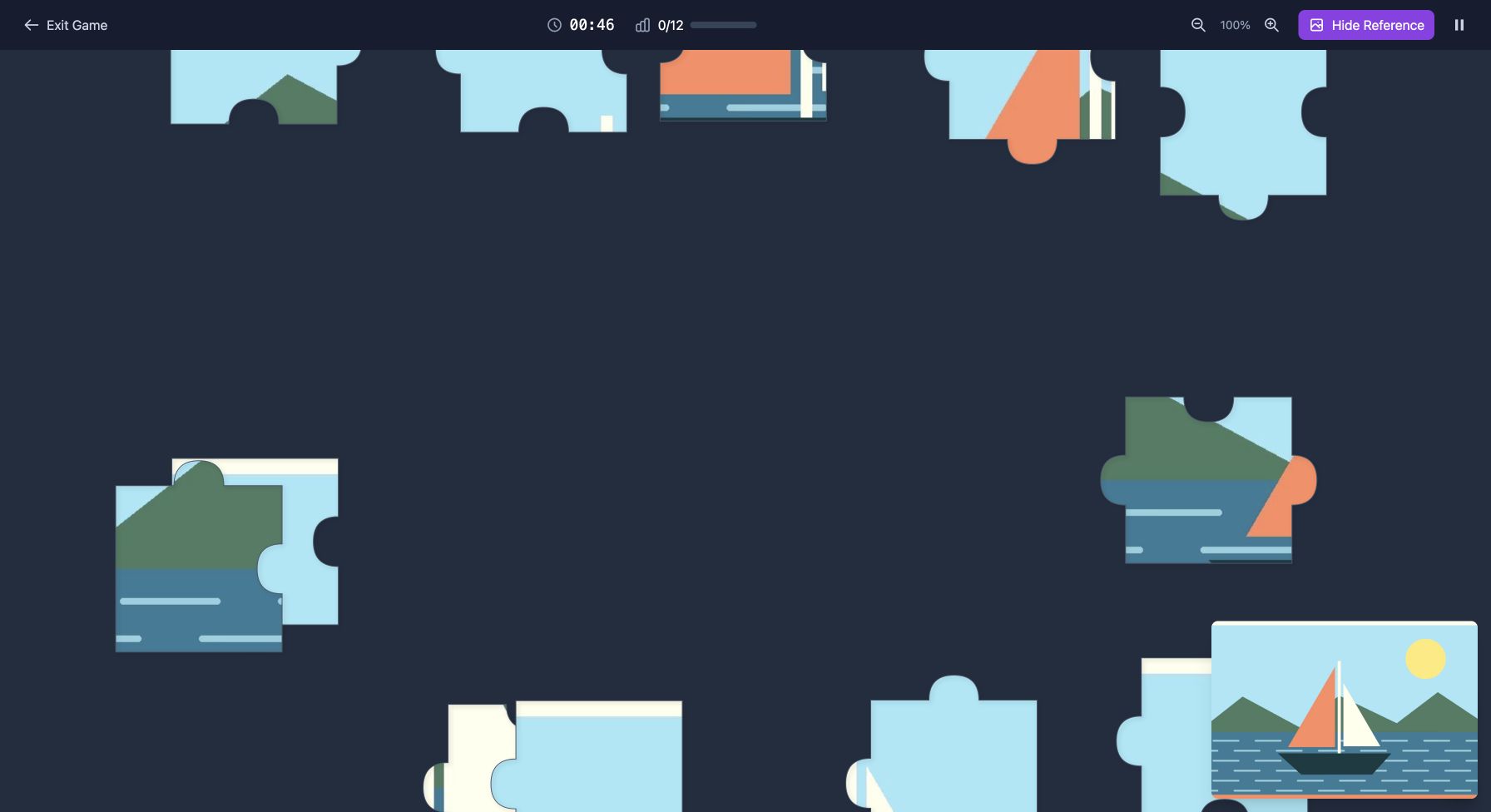
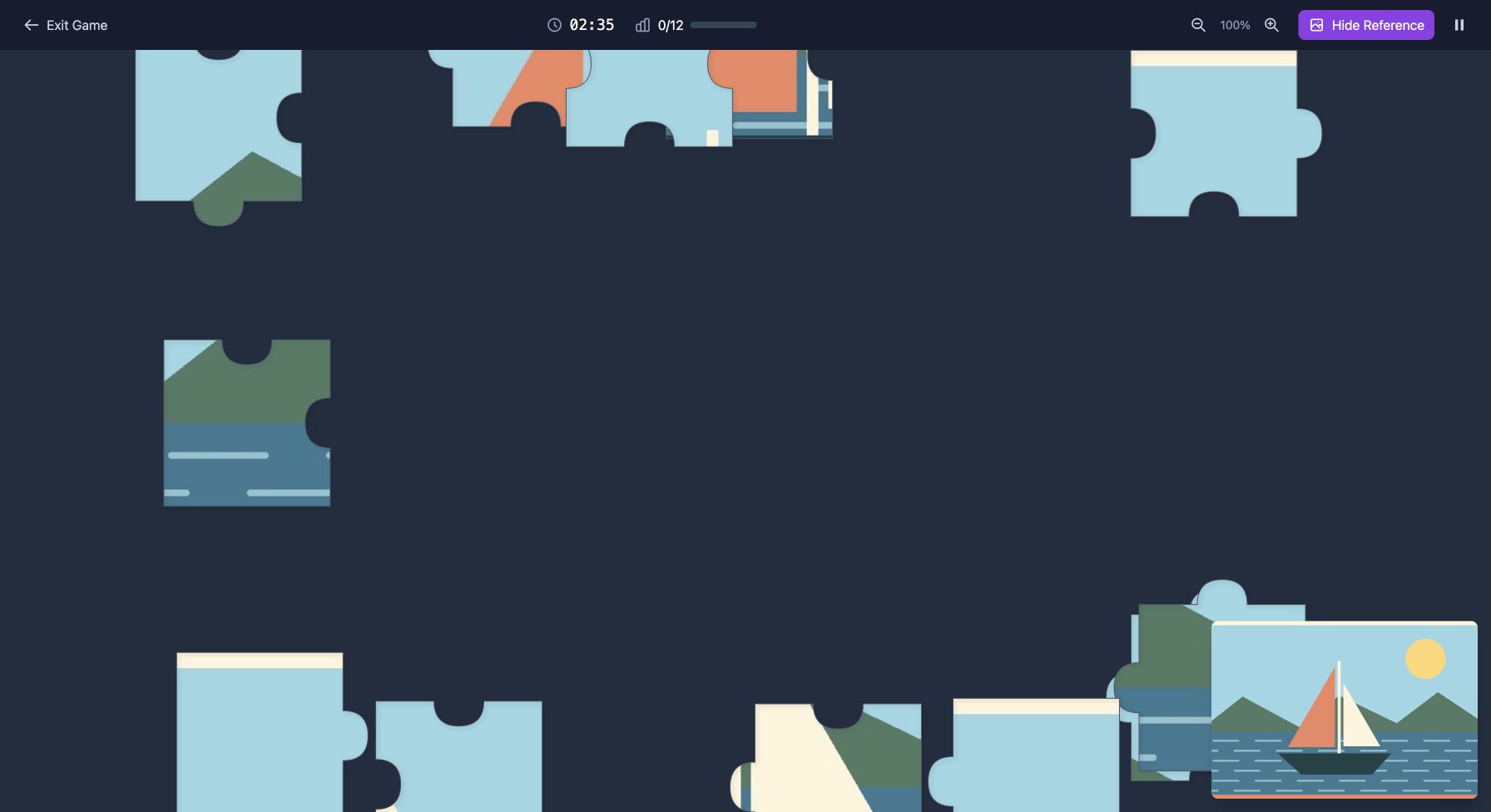
Use that same check with your own photo. When the selector opens, choose 12 pieces and open Show Reference. Compare it with the exported JPEG. Check the main subject and orientation before investing more time. A file that decodes can still have a framing problem. Missing edges after conversion deserve a separate crop check.
This Chrome test confirms the workflow for one generated HEIC file. It does not establish compatibility with every iPhone capture mode or every browser. If your HEIC fails but its JPEG copy works, you have a practical way to start playing while preserving the original.
Read the full photo puzzle guide for the rest of the creation process.
Conclusion
Keep both versions until the puzzle opens and the reference looks right. Continue with the working copy, and leave the original photo intact.
Sources and further reading
Frequently asked questions
Next move
Try the checked copy in the puzzle maker
Choose your working image on the DIY page. Keep the full photo guide nearby if you want help with the next step.