
Troubleshooting · Before the board appears
Online Jigsaw Puzzle Not Loading and What to Check First
Quick summary
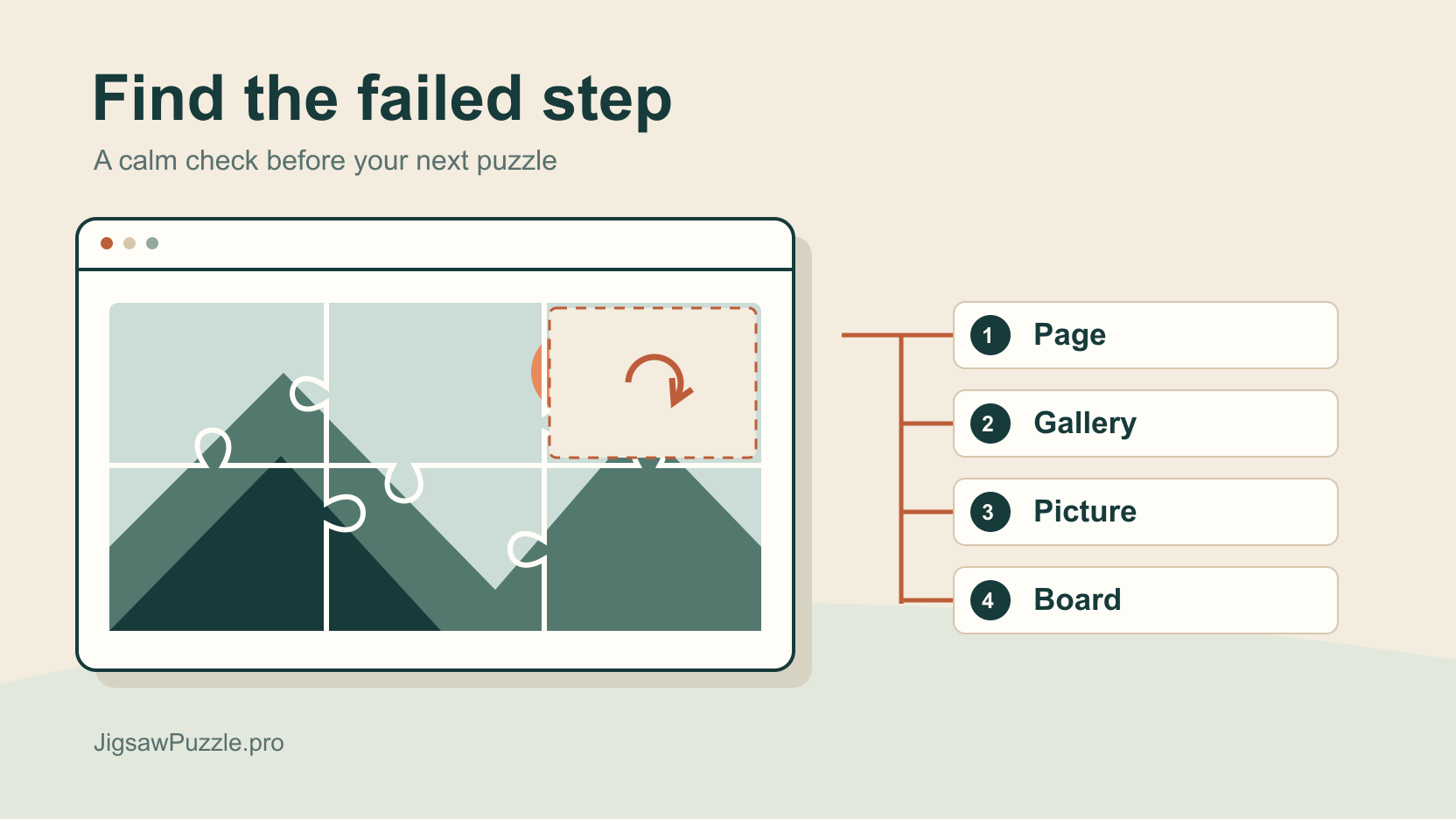
If your online jigsaw puzzle is not loading, note how far it gets before changing browser settings. A page that never opens needs different checks from a gallery with missing pictures. Reload once, then compare another gallery picture with a fresh JPEG test image.
Leave cookies and site data alone for now. JigsawPuzzle.pro keeps saved boards in your browser, and deleting site data can remove them. The checks below use a new test board.
Key takeaways
- 01Record the last visible screen and any exact error wording.
- 02Keep the device, browser and 12-piece setting fixed while changing pictures.
- 03Try a separate browser session before considering data cleanup.
Identify the stage that failed
Look for the last thing that appeared. Did Chrome show a connection error? Can you see gallery buttons? A difficulty picker means you reached picture selection. The timer and progress bar mean the game interface has opened.
If the jigsaw page is blank with no menu, begin with page loading. Visible menus with missing pictures narrow the check to image requests or rendering. The thumbnail and larger picture may use different addresses. JigsawPuzzle.pro tries the gallery picture first and can fall back to its thumbnail if loading fails.
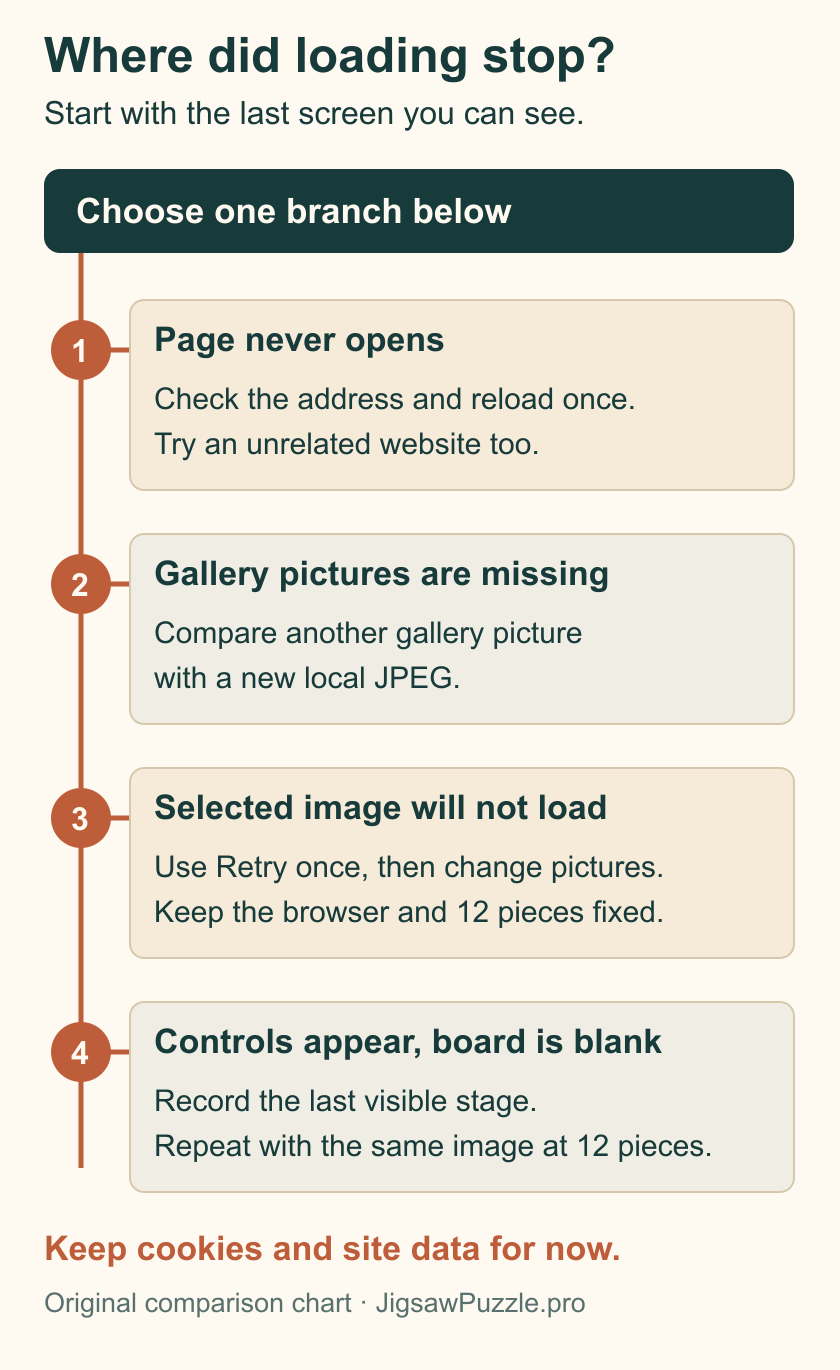
Open the four-branch chart at full size.
- Page never opens. Check the address, reload once, then open an unrelated website.
- Gallery pictures are missing. Compare another gallery picture with a fresh local JPEG.
- Selected image will not load. Use Retry once if offered, then change the picture.
- Controls appear but the board is blank. Record that stage and repeat with the same image at 12 pieces.
Compare the gallery with a new test image
Keep the device and browser fixed. Choose Easy for 12 pieces in each test. Changing the picture, browser and difficulty together makes it harder to understand what helped.
Open the gallery and try another picture.
- 1
Compare two gallery pictures.
Note both names. If one opens and the other repeatedly fails, report the specific picture. One failed template does not establish that every puzzle is incompatible with your browser.
- 2
Check the fresh JPEG.
Download the original test image below and open it on your device. Confirm that you can see the mountains and house. It contains no personal photograph.
- 3
Start a new photo puzzle.
Open DIY, select that JPEG and choose Easy. Look for pictured pieces and game controls. This removes the gallery image server from the comparison, although the website still needs to load.
Download the fresh JPEG test image.
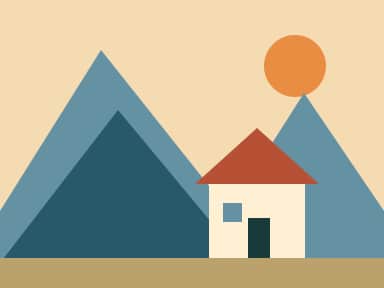
Select the test JPEG in the photo puzzle maker.
For this guide, Mountain Sunset, Forest Path and the original test JPEG all reached 12-piece boards in Chrome. We also dragged a piece on the JPEG board. We did not reproduce a loading failure, so these are comparison steps for investigating your result.
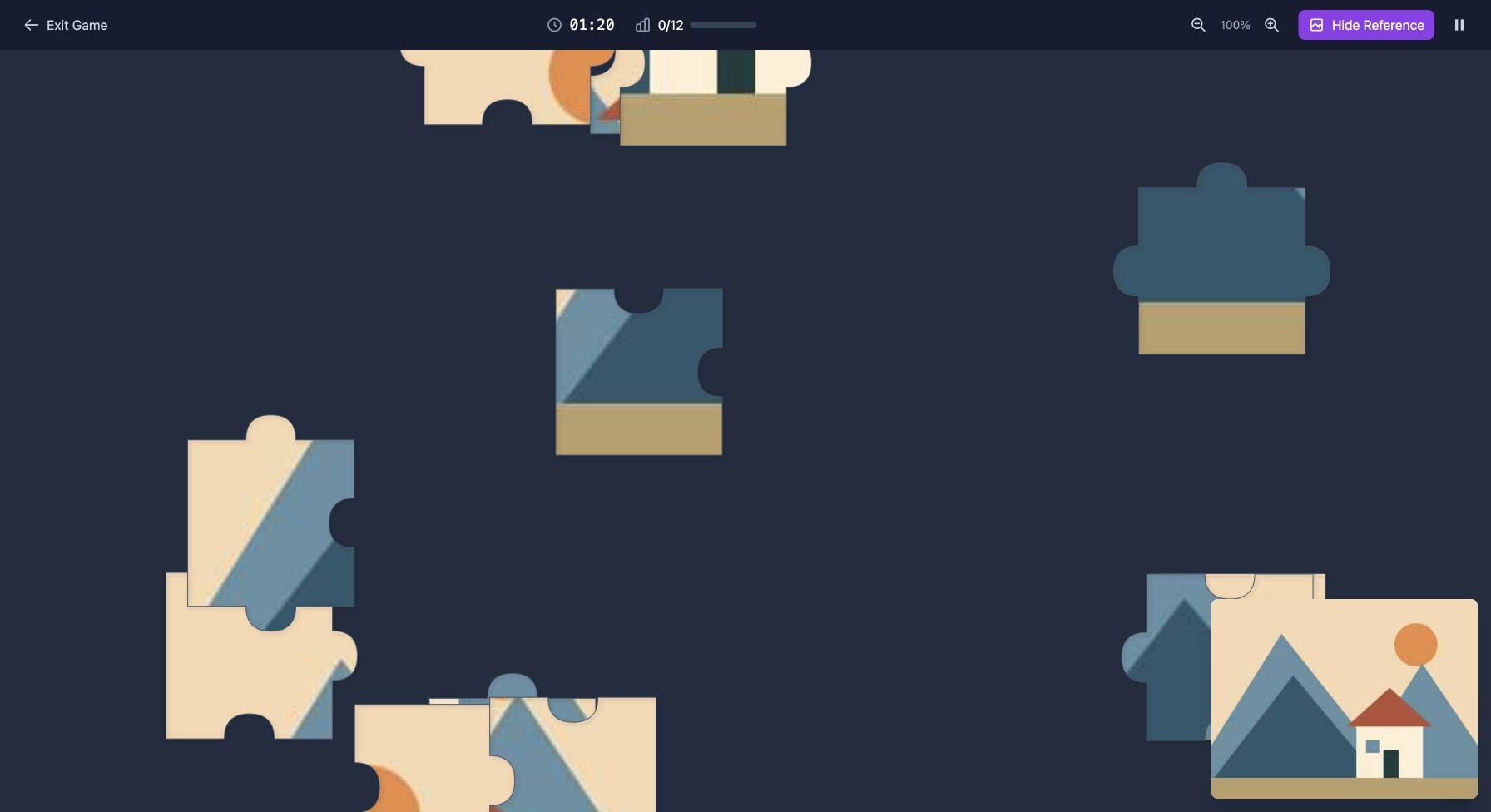
If the JPEG works while gallery pictures fail, record that difference. If both fail before the board appears, continue below. Once pieces are visible and movable, this loading check is finished.
Check the connection and browser safely
Google’s Chrome loading guide begins with checking the address and reloading. Try an unrelated website too. When several sites fail, check your connection first. Public Wi-Fi may require a sign-in page. If practical, repeat the same test on another network and record the result.
When the website opens but pictures fail, an image-host restriction is one possibility. PuzzleMe’s FAQ describes pictures blocked by their hosting server’s cross-origin settings. That example applies to PuzzleMe and does not diagnose this site. Players should keep browser security protections enabled.
Close unused tabs if Chrome crashes or reports low memory. Check for a browser update and restart after saving other work. Then try the fresh JPEG in an Incognito window. It uses a separate session, so existing saved games will not appear there. Extensions allowed in Incognito may still run.
If Incognito works, review extensions that affect this website, one at a time. Restore each setting after the comparison. Use your normal browser profile to return to saved boards.
Write a useful problem report
Record the failure before more testing. A useful report lets someone follow the same route and see where your result differs. Take a screenshot using a test picture, keeping personal images and unrelated tabs out of view.
Download the editable problem report template.
- Page address and picture name. Include the public route. For a custom puzzle, report the DIY page and test filename; avoid copying a game URL containing image data.
- Device and browser version. Include the operating system and full Chrome version from Help, About Google Chrome.
- Failure stage and exact message. Specify whether the page, gallery, selected image or board failed. Copy any visible error wording.
- Steps to reproduce. Record how you opened the site, the selected picture and the difficulty.
- Comparison results. Name the second gallery picture and whether the fresh JPEG worked. Add any network or Incognito comparison.
- Expected and actual result. Describe what should have appeared and what remained visible.
Save the screenshot with the report. Stop changing settings once you have a repeatable case, so the next investigation can start from the same conditions.
Sources and further reading
Frequently asked questions
Next move
Try one fresh gallery puzzle
Keep the same browser and choose Easy for 12 pieces so you can compare the result.