
Photo troubleshooting · Give the subject enough room
Photo Puzzle Cropping Problems and How to Prepare the Image
Quick summary
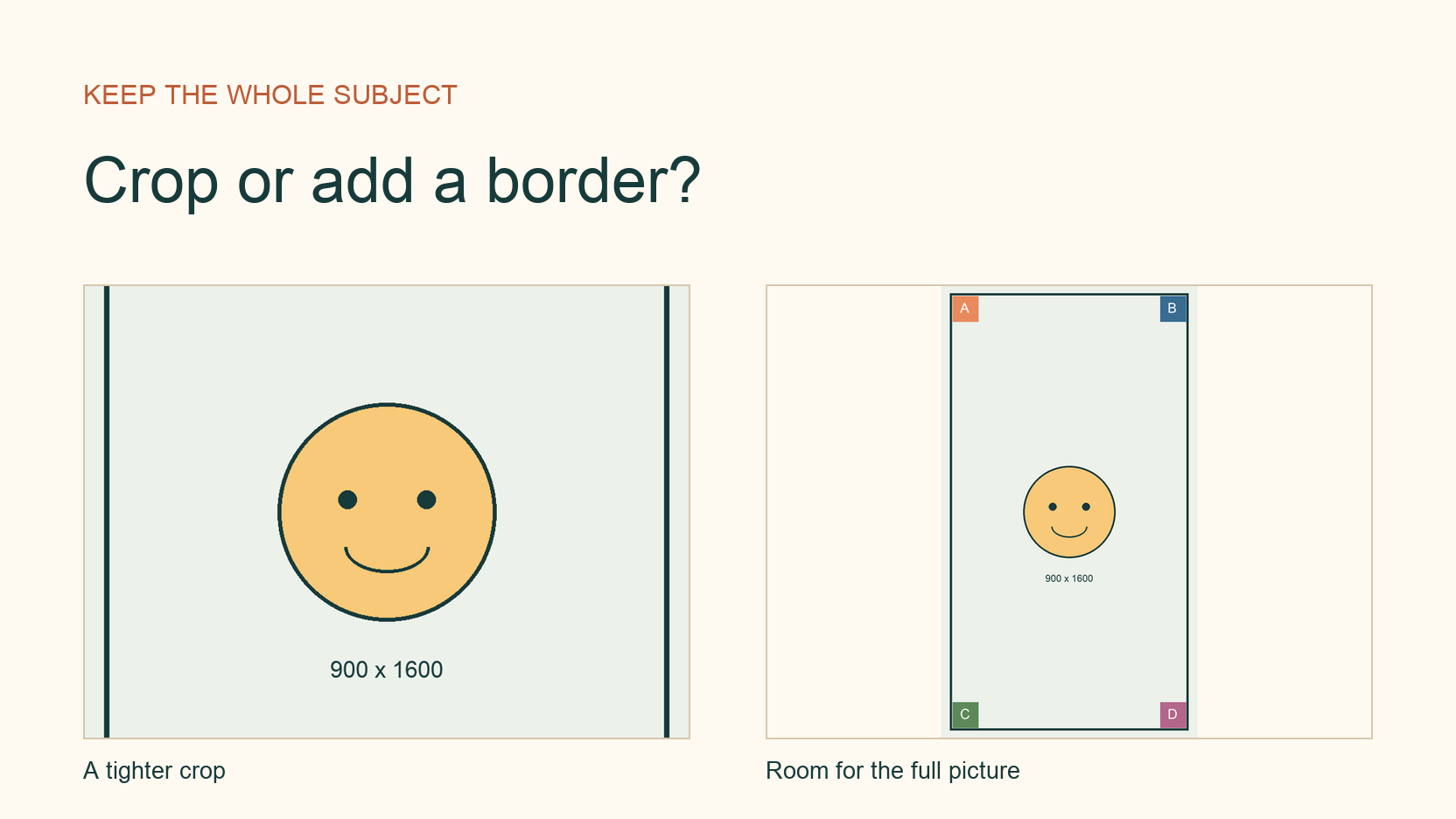
If your photo puzzle image looks cropped, compare the original with both the reference and the actual pieces. Decide which parts of the photograph you want to keep. When every edge matters, add space around the whole picture.
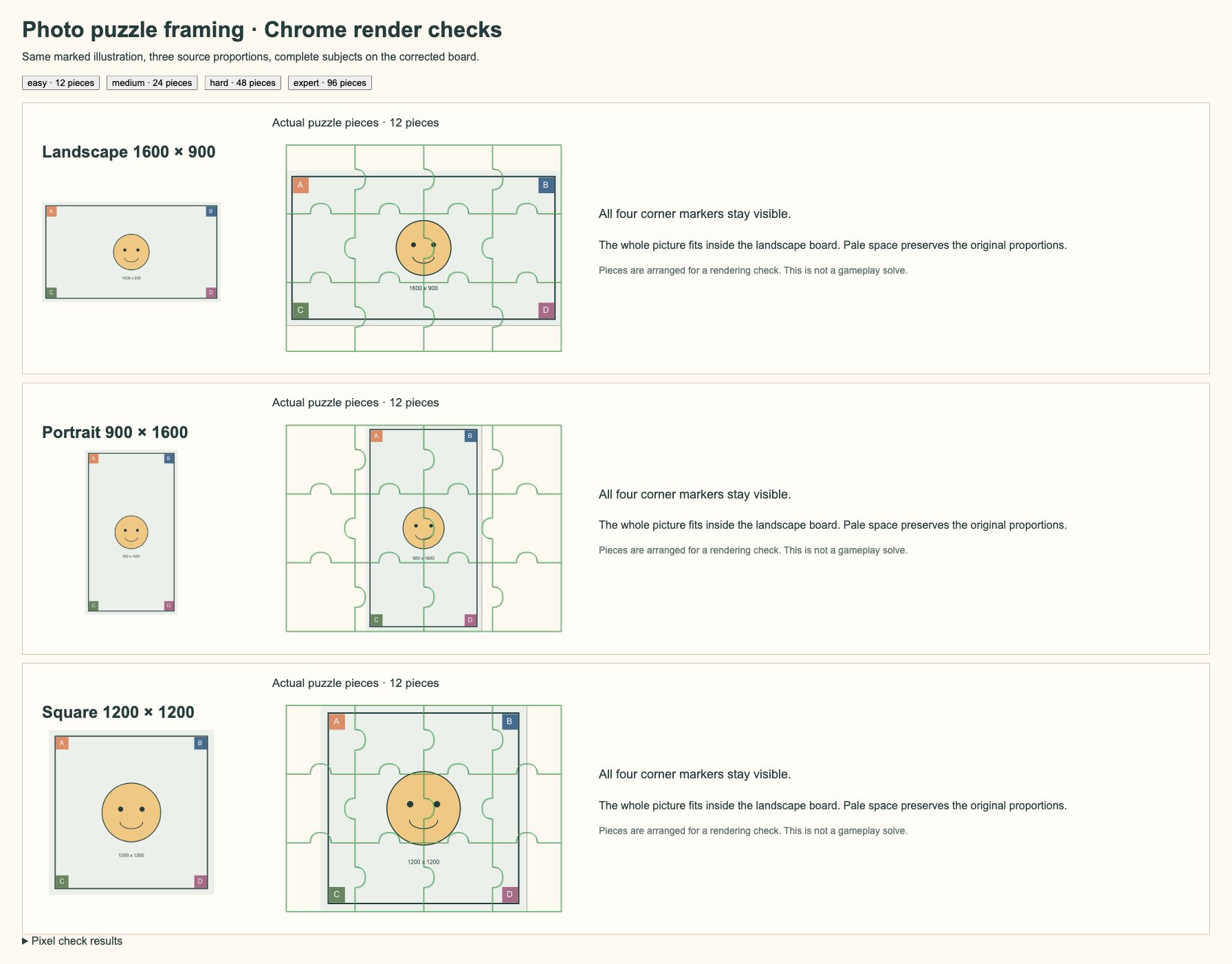
We checked marked landscape, portrait and square images in Chrome on October 6, 2026. That check exposed a display bug in JigsawPuzzle.pro that sampled the upper-left part of larger pictures. We corrected it. The current board fits the complete image without stretching, with pale borders where needed.
Key takeaways
- 01Check the pieces as well as the reference image.
- 02Cropping removes picture content; borders preserve it.
- 03The board is a landscape rectangle with proportions of 4 to 3.
- 04Try 12 pieces before committing to a longer game.
Identify what disappeared from the picture
Open the exact file you selected in the puzzle maker. Look for a detail near each edge. Then check those details in the game. A gallery thumbnail can have its own framing, so use the actual photograph as your starting point.
If the detail is already missing from that file, return to an earlier copy. If the reference shows it but the pieces cannot reproduce it, you have found a rendering problem. Our portrait test showed this clearly. The reference contained four corner markers and a central face, while the old pieces showed mostly empty space from the top of the picture.
A piece outside the visible workspace needs a different check. Use Zoom Out or pan the board to find it. A displaced piece still contains its picture detail. Cropped content is absent from the assembled image.
Compare cropping with adding a border
Aspect ratio compares width with height. For a photo puzzle, it determines how the picture fits the board. The current board measures 800 × 600 logical units, with proportions of 4 to 3. A portrait fits inside that rectangle with space on each side. Filling it with the photograph requires cutting away some of its height.
Choose a crop when you can spare some background. Move the selection around the subject before saving. An automatic center crop may cut off an off-center person or the end of a building. Leave enough space for whatever makes the picture recognizable.
Choose borders when you need the full frame. The photograph becomes smaller within the same board, and plain border pieces offer fewer visual clues. JigsawPuzzle.pro now adds pale space automatically when the proportions differ. To choose another border color, prepare it in an image editor before selecting the file.
| Test original | Fitted inside 800 × 600 | A centered crop removes |
|---|---|---|
| Landscape, 1600 × 900 | 800 × 450 image, 75 pixels above and below | 200 pixels from each side of the original |
| Portrait, 900 × 1600 | About 338 × 600 image, about 231 pixels on each side | About 463 pixels from the top and bottom |
| Square, 1200 × 1200 | 600 × 600 image, 100 pixels on each side | 150 pixels from the top and bottom |
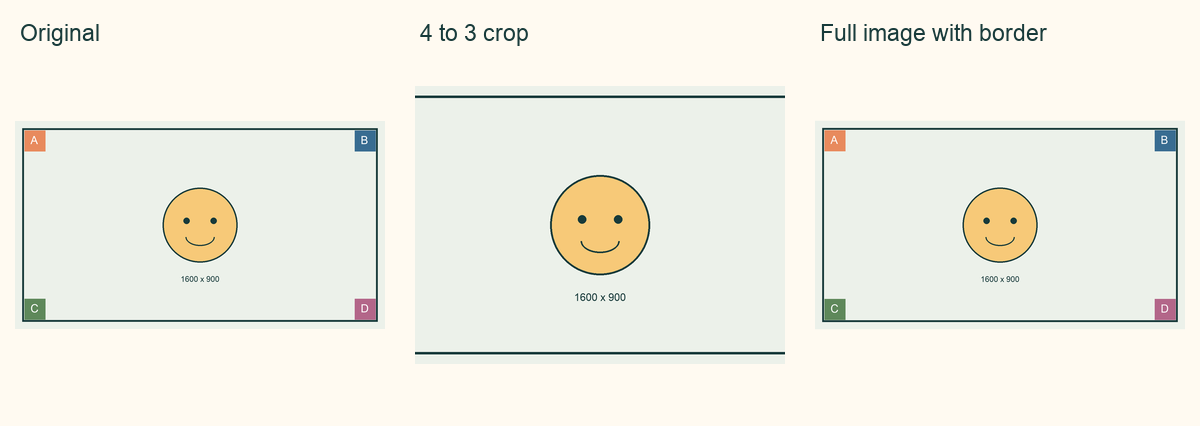
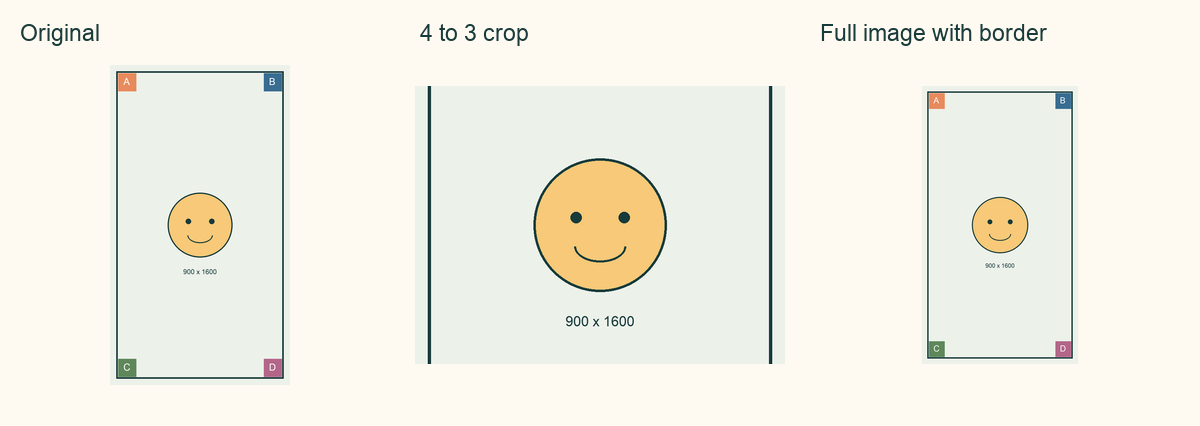
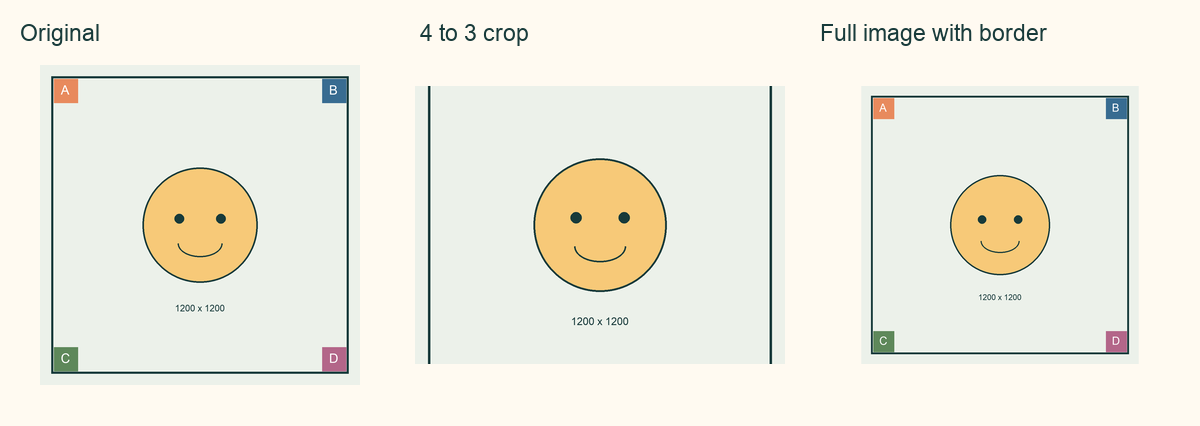
The crop figures describe pixels removed from the originals. The fitted figures describe an 800 × 600 result. We used that size to make the comparison repeatable. It is not a universal quality recommendation.
Prepare a copy for the current puzzle canvas
You can select the original and let this site fit it. Make a separate edited copy when you want tighter framing or a deliberate border. Keep the original so you can change that decision later.
- 1
Duplicate the photograph.
Give the working copy a clear name, such as garden-puzzle.jpg. Open it and confirm that it contains the complete subject.
- 2
Set the framing first.
For a border-free landscape result, choose a crop with proportions of 4 to 3. On a Mac, Apple Preview offers Rectangular Selection and a crop inspector for checking the selection dimensions, followed by the Crop command.
- 3
Preserve proportions when resizing.
In Preview, use Adjust Size with Scale proportionally enabled. A 1600 × 1200 crop becomes 800 × 600. Resizing an untouched portrait proportionally keeps its portrait shape.
- 4
Add canvas space if keeping every edge.
Use an editor with canvas-size controls. Fit the complete photograph inside a 4 to 3 canvas and fill the surrounding area with your chosen color. Export the whole canvas as a JPEG copy.
- 5
Open the exported file.
Check the framing at normal viewing size. We tested exact 800 × 600 prepared copies as a reproducible baseline. Larger copies with the same proportions also fit; extra pixels do not bring back anything removed by a crop.
There is no crop editor inside this puzzle maker. Make those edits before file selection. Avoid forcing an untouched portrait into separate width and height values, because that stretches its proportions.
Check the complete subject before a long game
Select your copy on the DIY page and choose Easy for 12 pieces. Open Show Reference, then compare the outer edges with the pieces. Our corrected rendering retained all four markers in each original test image. Cropped copies retained only the edited framing; bordered copies retained the complete illustration.
With a portrait photo puzzle, check the top and bottom first. If the subject feels too small, try a closer crop of the working copy and compare again. Continue with the version that keeps the details you want to spend time assembling.
Check your prepared image in the photo puzzle maker.
Use the full photo puzzle guide for the remaining creation steps.
Sources and further reading
Frequently asked questions
Next move
Try the picture you want to keep
Compare a quick 12-piece test with your original before settling into the game.