
Playing comfortably · One change, one comparison
Online Jigsaw Puzzle Lag on a Desktop Browser
Quick summary
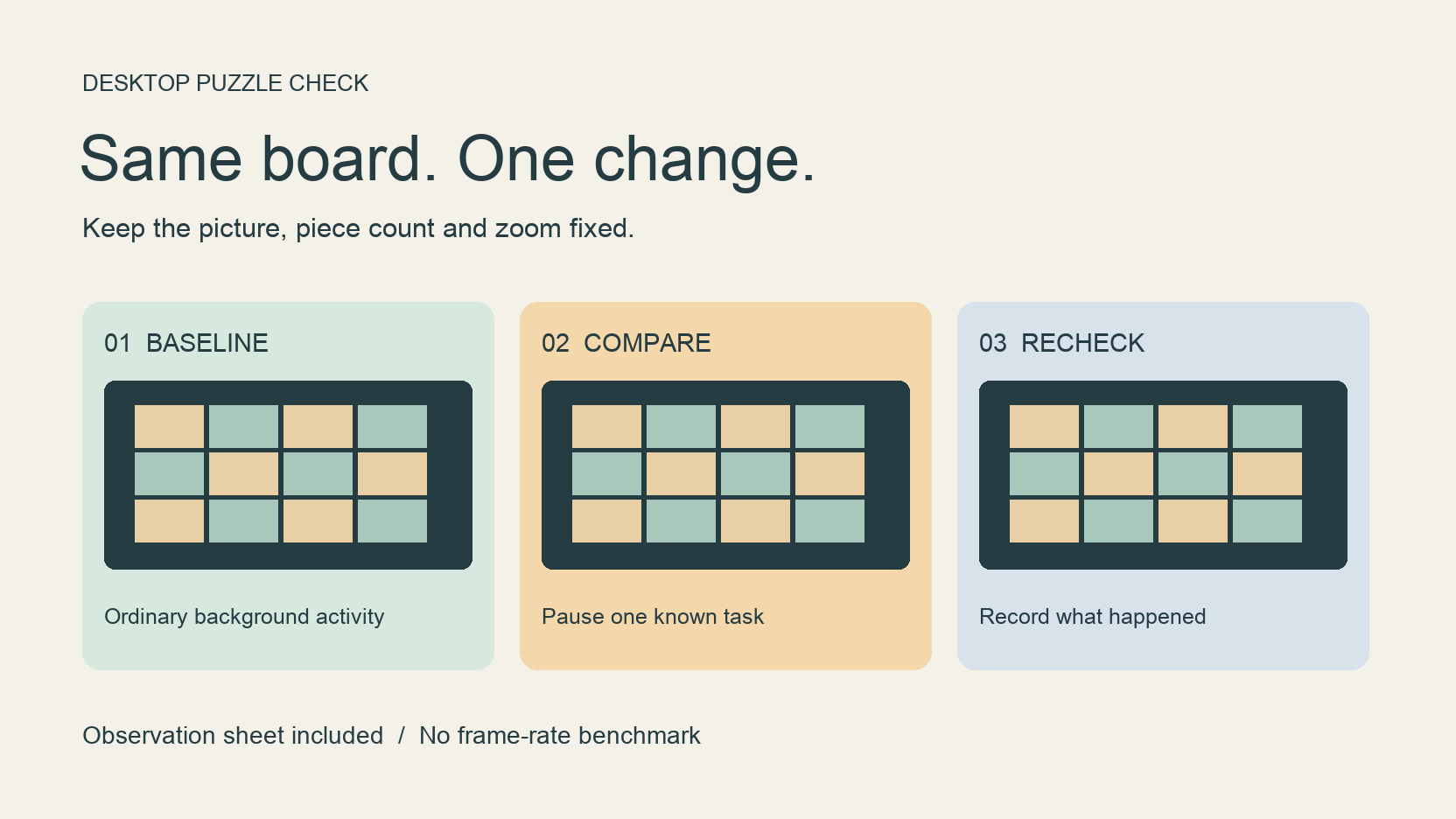
If your online jigsaw puzzle is lagging after the board appears, begin with one loose piece and one repeatable drag. Keep the picture, piece count and zoom unchanged while you compare conditions. A useful test tells you exactly what changed and what the piece did.
We tried that approach on a 96-piece JigsawPuzzle.pro board in desktop Chrome. All three test drags changed the piece’s position, including the drag made while a small background workload was running. We did not measure frame rate or pointer delay. The record below shows the limits of that check and gives you a way to investigate your own problem.
Key takeaways
- 01Separate a visible but sluggish board from a page that never finishes loading.
- 02Change one condition while keeping the same board and drag.
- 03Record the result before changing another setting.
Separate slow loading from slow dragging
First describe what you can see. This guide applies when the image has become puzzle pieces and you can move them, but their movement feels delayed or uneven. A blank board, missing image or loading message needs a different investigation.
Use the loading guide if the playable board has not appeared.
Choose a loose piece with clear space around it. Begin inside the picture on that piece, drag into an empty area and release. Moving uncovered canvas pans the board, while a joined group can move together. Those actions can look unexpected without showing a performance problem.
Watch the whole action. Does the piece trail the pointer during movement, jump only when released, or fail to move at all? Write down which behavior you saw. A complaint about slow dragging becomes easier to investigate when it identifies the moment that goes wrong.
For touch gestures and board navigation, use the tablet controls guide.
Create a repeatable desktop test
Our October 20 check used one desktop Chrome session, Mountain Sunset, Expert with 96 pieces, and the game’s 100% zoom. The reference picture stayed closed. We moved the same loose mountain piece through the empty central area, leaving the other browser tabs and applications unchanged.
For the middle condition, a separate local page ran two background calculation workers with an automatic stop after 45 seconds. Its status showed both workers running immediately before and after the middle drag. We then stopped them and confirmed that no workers remained before the final drag.
| Condition | Same board and action | Observed result |
|---|---|---|
| Baseline | 96 pieces, 100% zoom, loose piece moved into open space | Piece changed position |
| Two background workers active | Same piece moved farther across the open area | Piece changed position |
| Workers stopped | Same piece moved back across the open area | Piece changed position |
The screenshots confirm the piece’s final locations. They do not measure how smoothly it followed the pointer. This short check did not reproduce a failed drag or establish a sustained lag problem. It provides no measured speed difference, hardware diagnosis or proven fix.
To repeat the comparison yourself, keep the same computer, input device, browser window and picture. Use the same loose piece and a similar path. Record your ordinary background activity first. You can compare with a quieter session without deliberately generating extra load.
Open the gallery and choose a picture for your own comparison.
Change one condition at a time
Start with background activity you recognize. Save work in an unused tab, then close that tab or pause its video before repeating the drag. Google’s Chrome help recommends keeping Chrome updated, closing unused tabs and stopping unwanted tasks. Its Task Manager instructions warn that ending a process loses unsaved work.
Read Google’s current Chrome performance instructions.
Keep a separate row for each change. If you close several tabs, change the piece count and resize the window together, any improvement belongs to that combined change. You cannot tell which part mattered. Repeat the original condition when practical to see whether the symptom returns.
A browser update is another separate comparison. Save your work before restarting, note the old version and record the new version afterward. Retest the same board once you have restored it. If you cannot reproduce the original state, mark that comparison incomplete.
Try a smaller piece count only after the fixed-board comparison. JigsawPuzzle.pro offers 12, 24, 48 and 96 pieces. Choosing 12 instead of 96 changes the task, so record it as a different board. Easier dragging there would be a clue to investigate, without identifying the cause.
Jigsaw Explorer’s support page suggests hardware acceleration for sluggish movement in its own game. That advice concerns another puzzle engine. We have not verified an acceleration setting as a remedy for JigsawPuzzle.pro, and our short comparison does not justify promising one.
See the original Jigsaw Explorer support answer.
Keep saved progress available throughout the investigation. Clearing all browser data or resetting settings would also change several conditions at once. Begin with reversible changes you can describe and undo.
Check how this site saves and restores boards before restarting.
Keep a record before reporting the problem
Record the browser version and operating system, the picture name, piece count, zoom and input device. Add the background activity you changed. For the result, describe whether the piece followed slowly, jumped on release or stayed in place. Note whether it happened once or on repeated attempts.
Download the blank desktop dragging comparison sheet.
A short screen recording can show the pointer and piece together if you can capture them without exposing private tabs or notifications. Include the steps needed to reach the board. If the symptom disappears before you can record it, keep that result too. An intermittent issue needs the conditions of both attempts.
Use the next row for the next change. Stop when you have a repeatable difference worth investigating, or an honest record that the problem did not recur.
Sources and further reading
Frequently asked questions
Next move
Start with one repeatable drag
Choose a gallery board and keep its picture and piece count unchanged for your first comparison.