
Create your own · Several pictures on one board
Make a Photo Collage for an Online Jigsaw Puzzle
Quick summary
To make a photo collage jigsaw puzzle online, arrange your pictures in a collage editor, export one JPG, then select that file in the puzzle maker. JigsawPuzzle.pro accepts a single finished image. Combine your photos before opening the DIY page.
We tested this route in Chrome with four landscape photographs and Photo To Collage. The downloadable example below is the actual 2400 × 1800 JPG exported from that editor. A second arrangement repeats the same pictures across sixteen cells so you can compare what happens to the details.
Key takeaways
- 01Start with four pictures that remain easy to tell apart.
- 02Export one flattened JPG and keep the individual photos separately.
- 03Test the whole composition on a small board before adding more pieces.
Choose one story for the collage
Give each photo a reason to be there. For a day out, you might choose the main view, a close detail, a person and the place you stopped. Use photos you own or have permission to reuse. The arrangement should still make sense when the individual pictures become small.
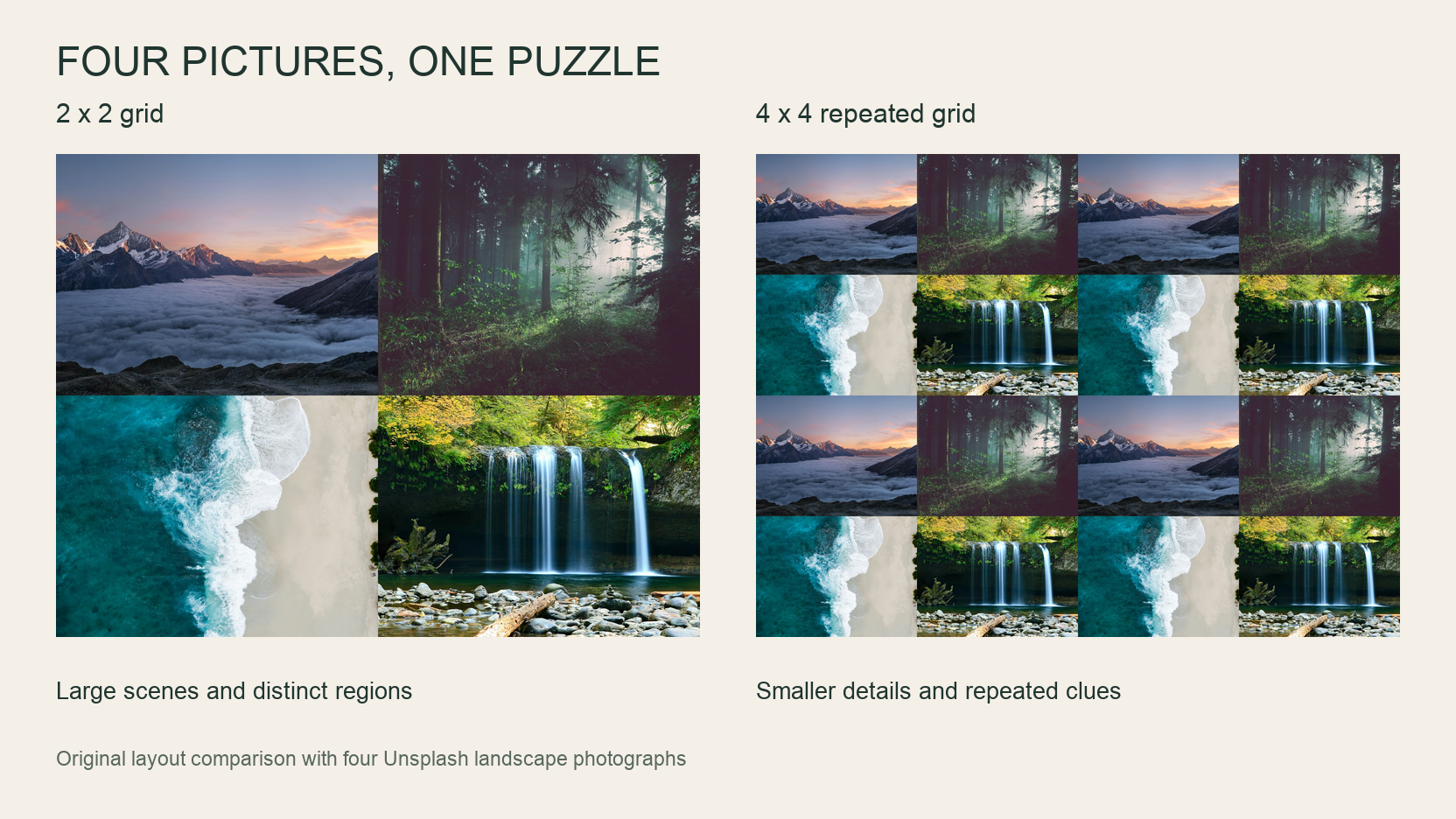
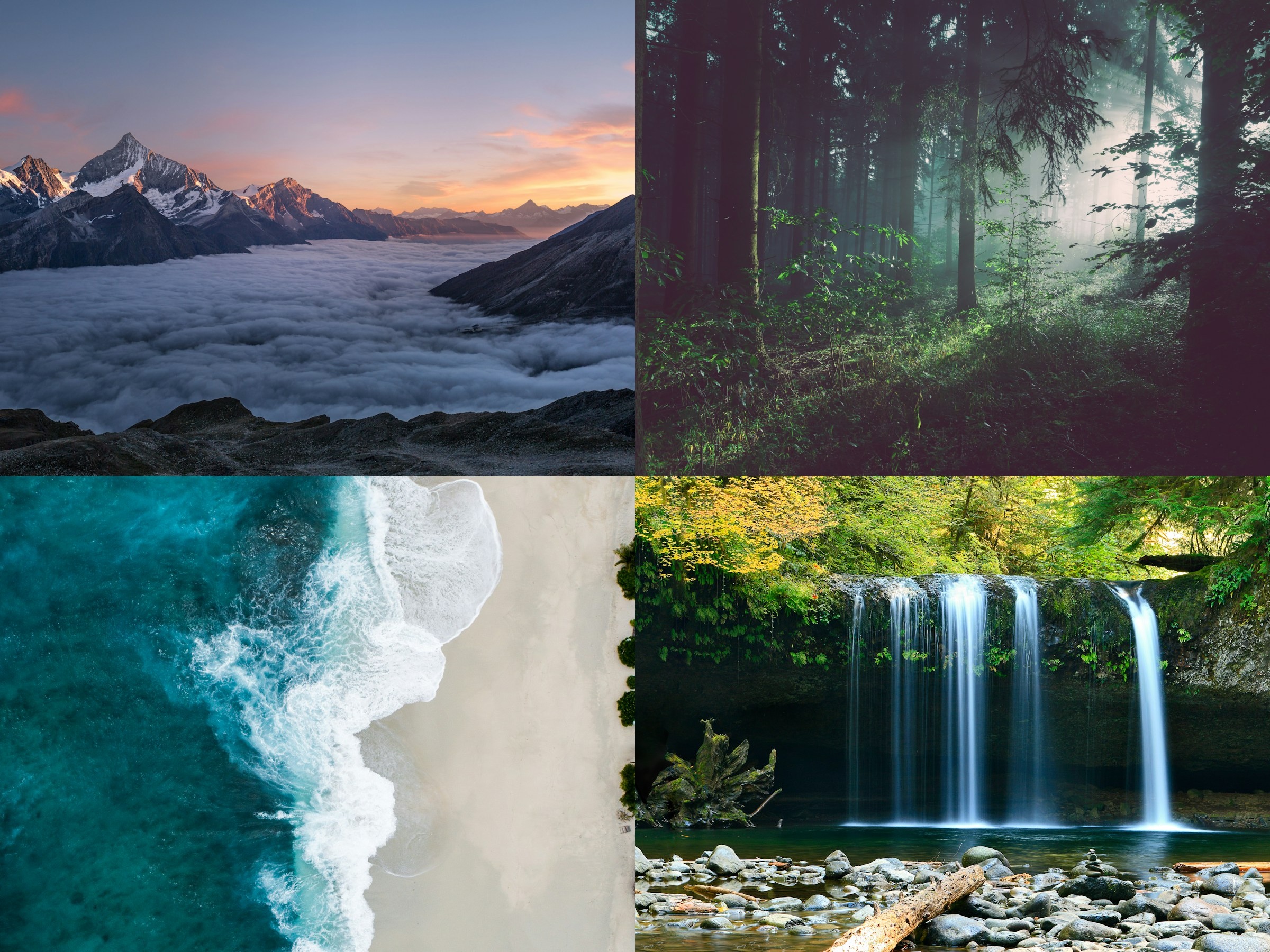
Our example uses mountains, a forest, a shoreline and a waterfall from the site’s existing Unsplash image selections. These are separate landscape subjects, not a record of one trip. Pink sky, dark trees, turquoise water and white falling water give each quarter a different appearance.
Keep the four originals in a separate folder, including any source notes. A finished collage combines the visible pixels into one file. If a crop needs changing later, you will need those separate photos to rebuild the arrangement.
Compare a simple grid with a crowded layout
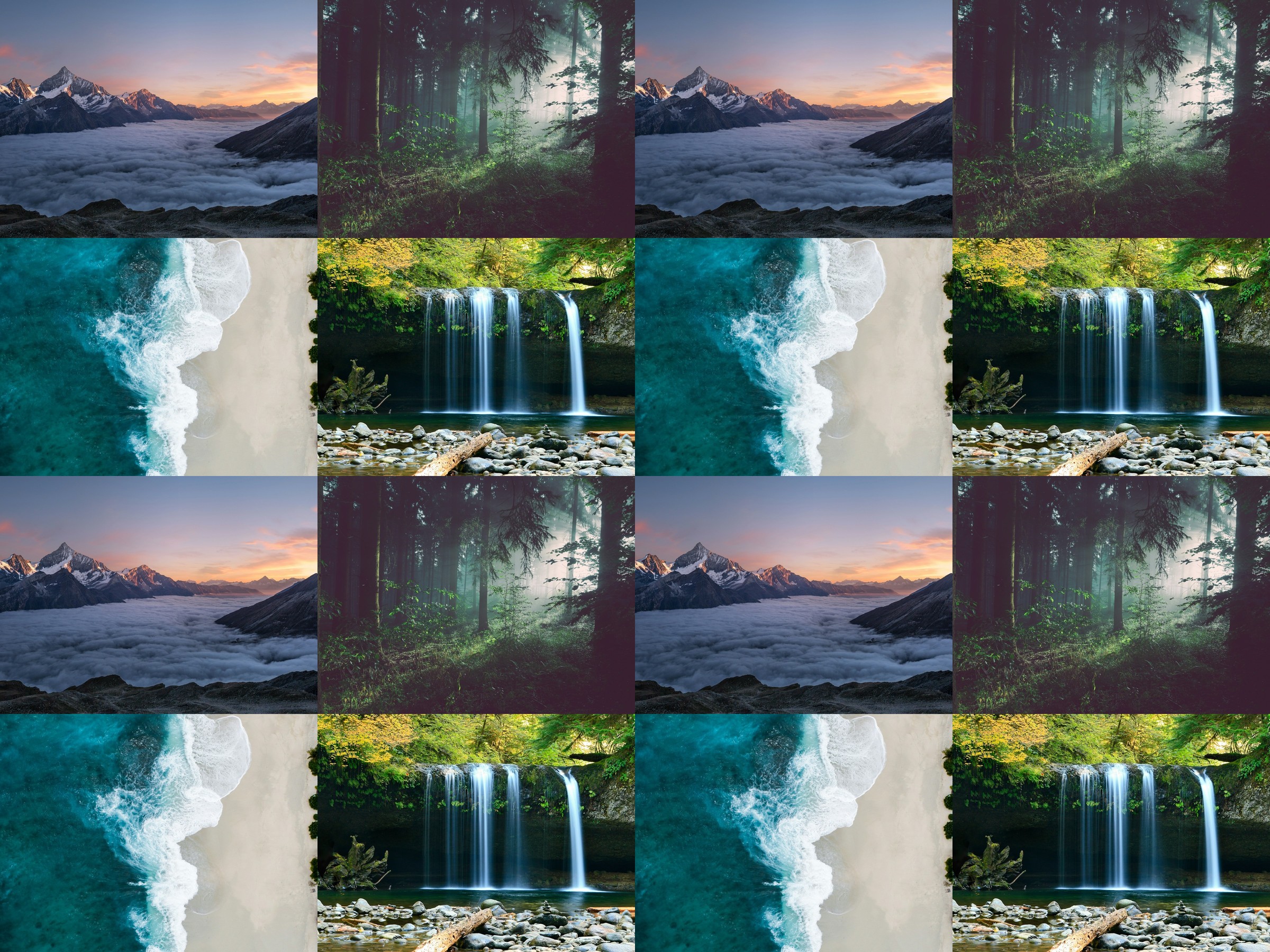
In the four-photo version, each scene occupies one quarter of the canvas. The crowded comparison repeats the same photos across sixteen cells. Both canvases measure 2400 × 1800 pixels. Each crowded cell is half as wide and half as tall as a cell in the simple version.
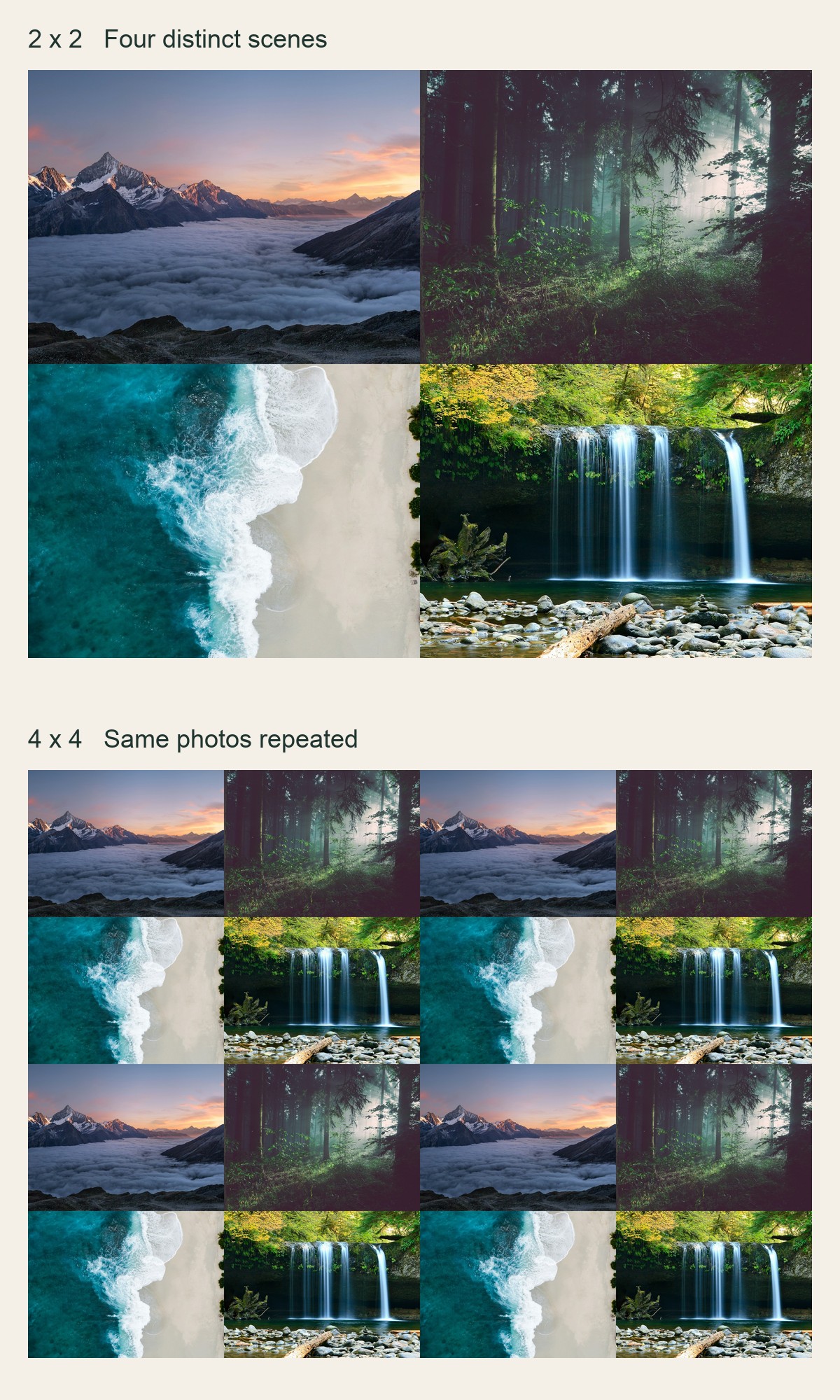
Follow the waterfall in both versions. Its white streams are large in the four-photo design. In the crowded version, those streams appear in four locations, each at a smaller scale. A piece showing white water may belong to more than one region. This comparison illustrates the layout tradeoff; it is not a measured solving-time experiment.
Start without decorative borders. A wide pale gutter becomes part of the puzzle image, leaving some pieces with little detail to identify. If you want separation, try a narrow gap and inspect it at the size you intend to play. Keep important subjects clear of the cell edges.
Export one flattened image
In our October 18 test, Photo To Collage accepted all four JPGs without a sign-in. We selected Four grid and the landscape aspect ratio, then set Spacing, Outer padding and Rounded corners to zero. Each source file already had a four-to-three aspect ratio, matching the four cells within the landscape canvas.
Open Photo To Collage to arrange your own images.
We chose JPEG and the High resolution option. The exported file measured 2400 × 1800 pixels and 1,227,657 bytes, about 1.17 MiB. It contains all four scenes with no visible watermark. These measurements describe this download; a different set of photos can produce a different file size.
Open the downloaded JPG before starting the puzzle. Compare its four corners with the editor preview and check the joins at the center. Look for an accidentally cropped face or a photo that has moved to the wrong cell. Download the finished file before closing the editor, and keep the originals for later changes.
Download the tested four-landscape collage JPG.
Use the image framing guide if a source photo needs a different crop.
Test the seams and small details in a puzzle
Select the exported JPG on the DIY page and choose Medium for a 24-piece trial. This setting uses six columns and four rows. For an evenly divided 2 × 2 collage, each photo covers three columns by two rows in the underlying grid. The shaped tabs still cross neighboring cell boundaries.
Choose your finished collage in the DIY puzzle maker.
Our exported JPG opened a 24-piece board in Chrome. We moved a loose mountain piece into the open workspace and opened the reference image, which showed all four quadrants. This verified starting and interacting with the puzzle; we did not complete the board.
Open the reference image and check that all four scenes are present. Move a loose piece and look at its picture content. Pieces near a collage join may combine unrelated colors, such as mountain sky beside dark trees. Match those fragments against the join in the reference image.
If the forest feels too uniform, return to the collage editor and substitute a more distinct scene. If a subject disappears at normal viewing size, give it a larger cell or remove a photo. Increasing the piece count makes smaller fragments; it does not make tiny subjects larger.
Keep the final JPG alongside the source photos. To revise the composition, export a new image and start a new puzzle with that file. The collage editor controls the arrangement, while the DIY maker turns the resulting image into one playable board.
Follow the photo puzzle tutorial for the rest of the DIY controls.
Sources and further reading
Frequently asked questions
Next move
Turn your finished collage into a puzzle
Download the example or export your own composition, then select that single file in the maker.