
Create your own · Keep the photo, shrink the copy
Photo Too Large for a Puzzle Maker and How to Reduce It
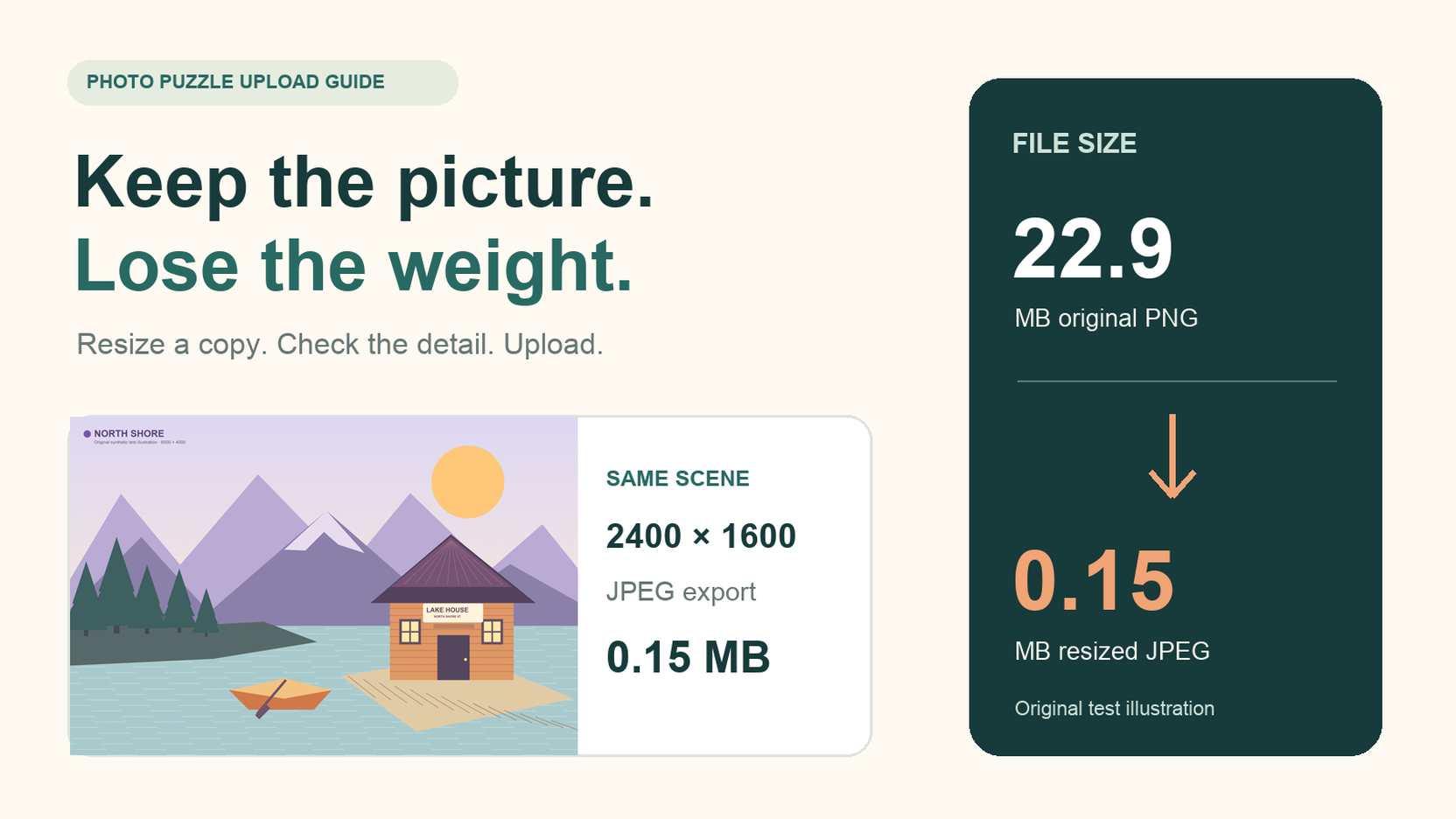
Quick summary
If your photo is too large for the puzzle maker, keep the original and export a smaller copy. JigsawPuzzle.pro checks the selected file before it prepares the puzzle, so an oversized image needs reducing on your device first.
The maker’s 20 MB limit applies to the file you select. Changing the filename, choosing fewer pieces, or waiting longer will leave that file just as large. Start by checking its size, then make one working copy you can comfortably open and inspect.
Key takeaways
- 01Keep your original and give the puzzle copy a new name.
- 02Reduce pixel dimensions or JPEG quality, then check the saved file size.
- 03Open the puzzle and inspect the reference before discarding any working copy.
Separate file size from pixel dimensions
File size is the storage a picture occupies, measured in bytes, KB, or MB. Pixel dimensions describe its width and height. Two images with identical dimensions can have very different file sizes because their format, compression, and picture content differ.
The current maker rejects supported files larger than 20,971,520 bytes, or 20 × 1024 × 1024. That is 20 MiB, displayed on the site as 20 MB. A file manager may round its size or use decimal MB, so make a copy comfortably below the displayed limit instead of trying to hit the boundary.
Reducing width and height removes pixels. Lowering JPEG quality saves space by discarding some image information. Both can bring the file below the size limit, but check the result before playing. Changing only a print-resolution label while leaving the pixel dimensions unchanged will not meaningfully shrink the image data.
Create a smaller copy with a free local tool
On a Mac, Preview provides the controls you need. Duplicate the original in Finder first, then open that duplicate in Preview. A name such as lake-puzzle-copy makes the working file easy to spot in the chooser.
- 1
Reduce the dimensions.
Choose Tools > Adjust Size. Use pixels for width and height, enable Scale proportionally, and select Resample image. For a large landscape photo, try a width around 2400 pixels. Keep the proportions so people and objects retain their shape.
- 2
Export a JPEG copy.
Choose File > Export, select JPEG, and use the quality control to make a reasonably clear first copy. Save it under a new name. Reopen the saved image and check its file size in Finder with Get Info.
- 3
Adjust only as far as needed.
If the copy remains too large, start again with a fresh duplicate of the original and reduce the dimensions or quality a little further. Once the file fits and important details remain clear, stop. Repeatedly saving the same JPEG makes it harder to compare against a clean starting point.
On another device, use an editor with equivalent resize and export controls. Keep the saved copy on the device from which you will choose it. A renamed .jpg extension does not perform a conversion, and a ZIP archive is not a supported puzzle image.
Compare two exports of the same image
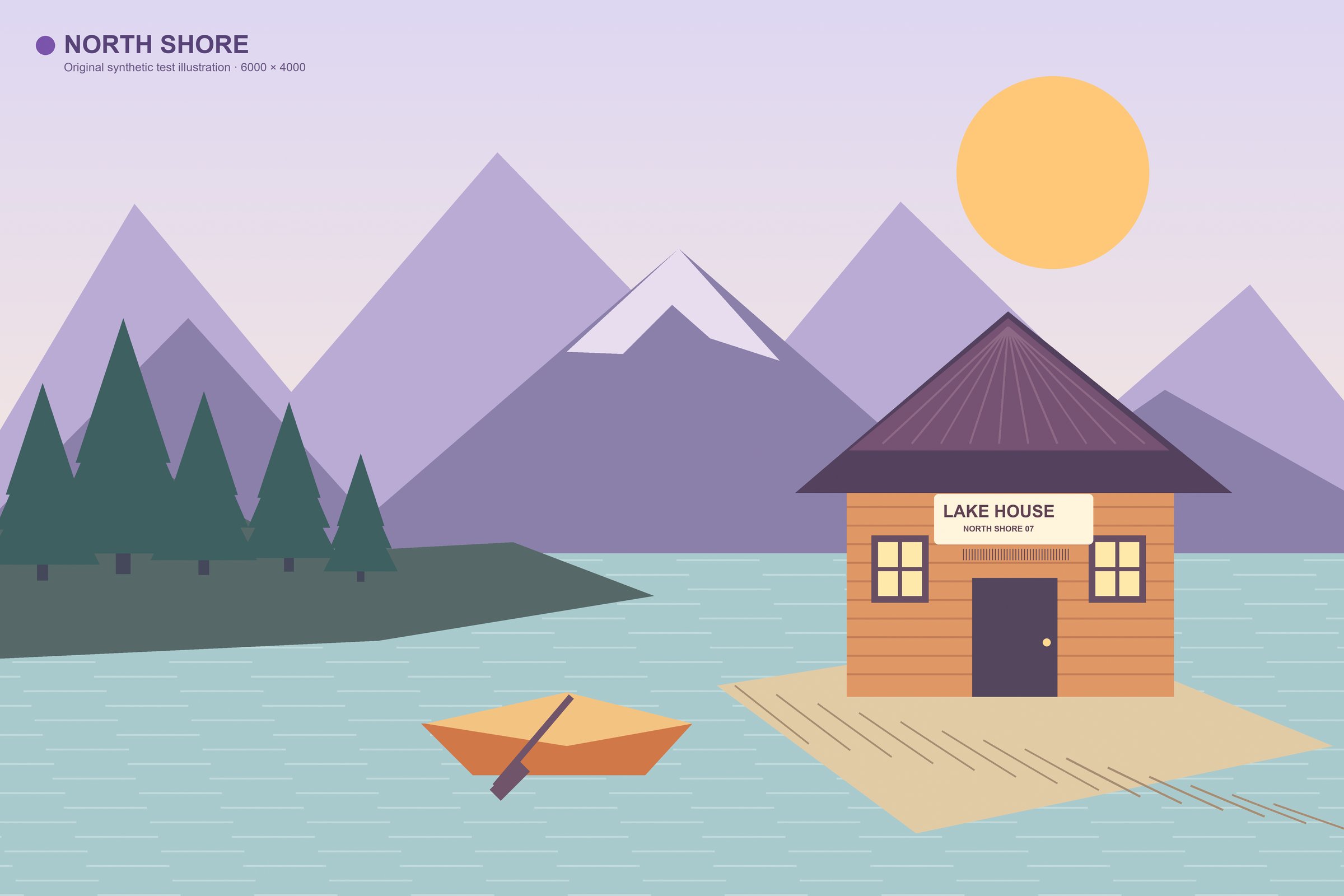
For this guide, we created an original lakeside test illustration with fine texture and a small sign. It is a synthetic image, not a photograph. Both JPEGs came from the same untouched PNG using a local image script. The quality numbers below describe that encoder’s settings, not exact positions on Preview’s slider.
| File | Pixels | Exact bytes | Export setting |
|---|---|---|---|
| Original PNG | 6000 × 4000 | 22,856,894 | Lossless |
| JPEG A | 2400 × 1600 | 152,100 | Quality 85 |
| JPEG B | 1500 × 1000 | 55,175 | Quality 65 |
In Chrome on October 13, 2026, the original triggered the file-size error. JPEG A and JPEG B each passed processing and opened a 12-piece board with the reference image visible.
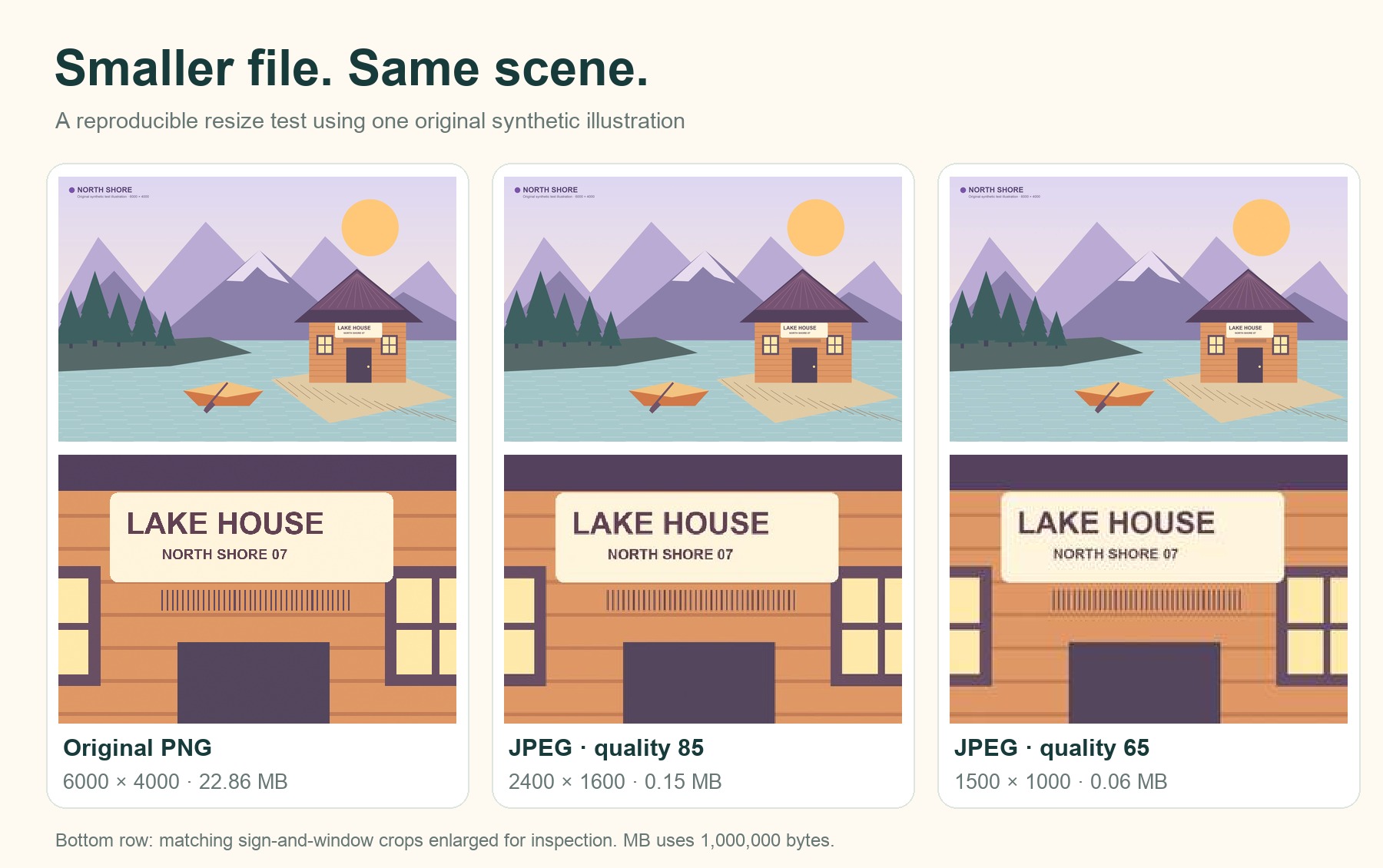
Both exports keep the house, boat, and mountain outlines easy to recognize. The larger JPEG preserves cleaner sign lettering, so it is the copy we would choose here. This illustration compresses particularly well. A photograph with foliage or grain can produce much larger files at the same settings.
Confirm the copy is accepted and still useful
Open the photo puzzle maker and choose the exported copy. Reaching the difficulty chooser confirms that the image passed selection and processing. Choose 12 pieces for a quick check, then open the reference image on the board.
Try your smaller copy in the photo puzzle maker.
Look at one detail you actually need during play. Can you separate the roof from the sky, read an important label, or distinguish the eyes in a portrait? Check the reference at your normal playing size. A tiny thumbnail can hide damage that becomes obvious on the board.
If the size error remains, confirm that you selected the new copy and check its exact byte count. If a smaller file produces a format or processing error, follow that message instead of continuing to shrink it. HEIC conversion has its own troubleshooting steps.
Sources and further reading
Frequently asked questions
Next move
Ready to try the smaller copy
Keep the original safely stored and choose the exported file to make your puzzle.