
Keep your progress · Leave a board and return to it
Online Jigsaw Puzzles That Save Progress
Quick summary
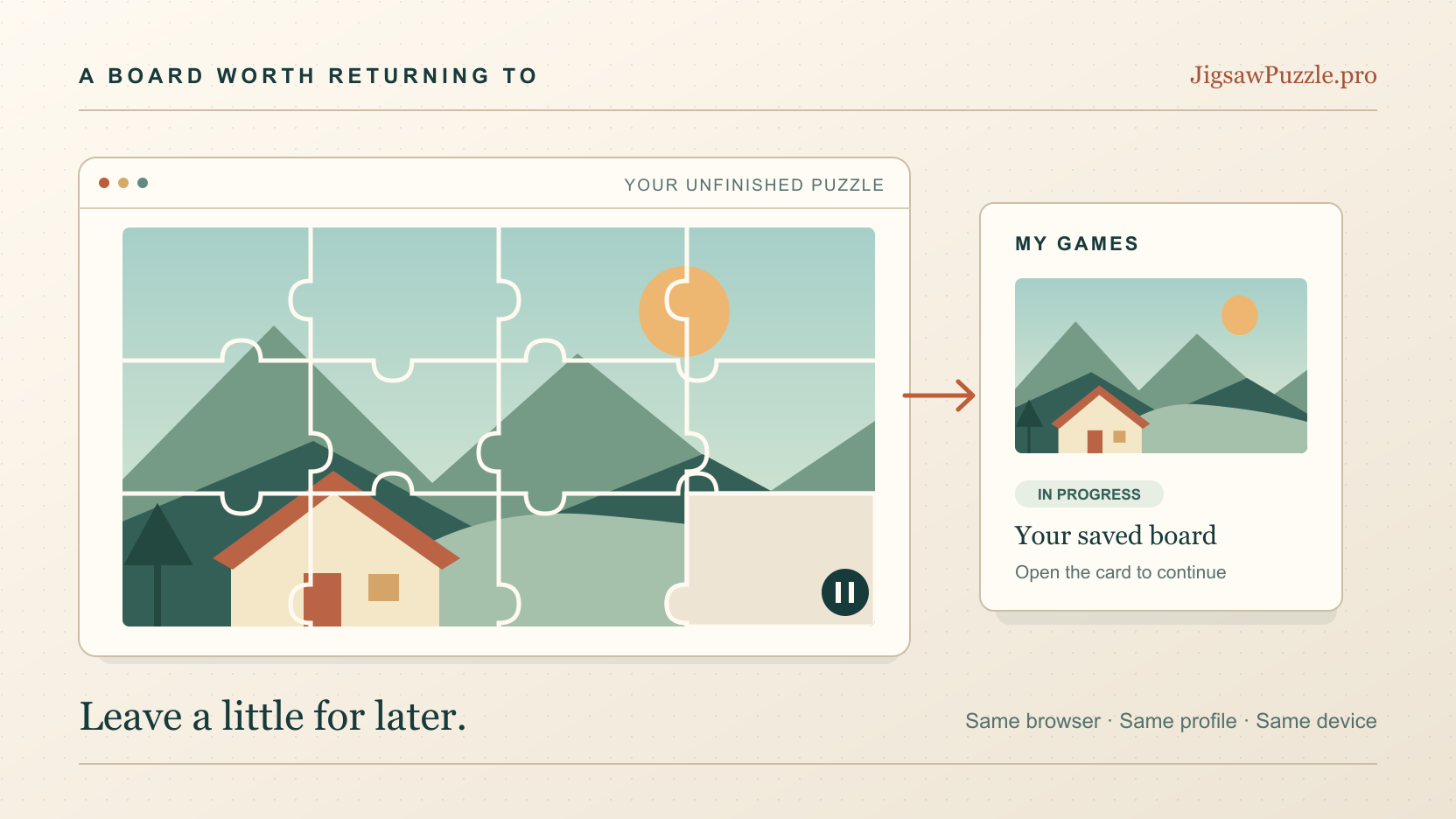
To resume a puzzle on JigsawPuzzle.pro, open My Games in the same browser and profile on the device where you started. Choose the board under In Progress. The gallery starts new games, so selecting the original picture there is a different action.
These free online jigsaw puzzles save progress locally without a download or an account. Before leaving a long session, check the saved board itself. A bookmark helps you find the website again, but it cannot preserve your pieces if the browser’s site data is removed.
Key takeaways
- 01Return through My Games and In Progress to restore an existing board.
- 02Keep the same browser profile and avoid private browsing for puzzles you want to continue later.
- 03The default limit is five unfinished puzzles. Saving a sixth removes the least recently played one.
Know where your puzzle progress is saved
A local save belongs to the browser that created it. Chrome and Safari keep separate website storage, even on the same laptop. Two Chrome profiles also have separate storage. Signing into your usual browser account on another computer does not copy this site’s puzzle saves.
JigsawPuzzle.pro stores the board configuration, piece positions and other game details in browser storage. Returning through a saved-game card loads those details. The site has no account-based cloud sync or public puzzle-sharing system. If continuing across devices is essential, check that capability before beginning a long board.
Save and resume a puzzle through My Games
Auto-save runs after piece changes and can take a few seconds. You do not need to find a manual Save button. A disappearing saving message alone is weaker evidence than reopening the board and seeing your arrangement.
- 1
Make a recognizable change.
Move a piece to an obvious location or join a small group. Remember that arrangement so you can recognize it after returning. Keep the page open briefly after the move.
- 2
Leave through the game’s exit control.
Confirm the exit when prompted. This route attempts to save before returning to the gallery. If a save error appears, keep the tab open while you investigate.
- 3
Open My Games.
Use the navigation link and look under In Progress. Find the board by its thumbnail and title. The card shows saved progress and time, which help distinguish similar pictures.
- 4
Open the card and check the board.
Select the unfinished puzzle. Check that your moved piece or joined group is present. This short round trip confirms that the saved state can actually be restored before you close the browser.
Progress percentages measure assembled progress, so merely moving a loose piece may leave the percentage unchanged. Check the arrangement too. A screenshot can help you remember the board, but the site cannot turn that screenshot back into a saved game.
What survives a break and what does not
Use this checklist when deciding how to return. Each answer assumes the save succeeded and the browser has kept the website’s data.
| What you do | What to expect |
|---|---|
| Close and reopen a normal browser window | Return through My Games in the same profile. |
| Switch to another browser or profile | That browser has its own saves. The original board stays in the original profile. |
| Open the site on another device | Local progress does not transfer. |
| Save a bookmark or copy the game URL | The link is a shortcut. It does not contain a backup of the board. |
| Finish a puzzle | Look under Completed for its history record. |
| Clear cookies and site data | Locally stored puzzle progress can be deleted. |
Private browsing uses a separate session. Chrome removes its temporary site data when the Incognito session ends. Start puzzles you intend to keep in a normal window, and perform the save-and-resume check there.
If your saved jigsaw puzzle has disappeared
First check the original browser and profile on the original device. An empty My Games page in a different profile does not establish that the original save is gone. Then check Completed. Finishing a board removes it from In Progress and creates a history record.
If you opened the picture from the gallery and saw scattered pieces, return to My Games before doing more work. You may have started a fresh copy. If the original card is still there, open that card to restore the earlier session.
Next consider whether you started several additional puzzles, used Clean Up, deleted a card or cleared browser data. Those actions can remove saves. Avoid clearing site data as a first troubleshooting step, because that can erase the board you are trying to recover.
If the original game tab is still open, keep it available while checking My Games in another tab. If the saved data really has been deleted and no live session remains, the site has no cloud copy to restore. A saved-game URL alone cannot recreate it.
Understand the five-puzzle limit and Clean Up
The default allowance is five unfinished puzzles. When a new save takes the total beyond five, the least recently played saved game is removed. Revisiting an existing board updates its last-played time. It does not make that board immune to later removal.
Before sampling many gallery pictures, check which unfinished boards matter to you. Finish one before adding another if you are near the limit. The storage bar shows an estimated amount of data used; it does not replace the separate limit on unfinished games.
Clean Up targets saves that have not been played for more than 30 days and have less than 10 percent progress. Read the confirmation before using it. Moving loose pieces around may produce a meaningful arrangement while leaving assembled progress low, so inspect an old board before deciding it is disposable.
Keep the original photo for custom puzzles
Custom photo puzzles use the same local save system. The processed image is included in the unfinished game’s saved data, so resume through its card rather than uploading the photo again. Keep the original photo separately if you may want to create another puzzle later.
A new upload can make a fresh board, but it cannot recover your previous piece positions after a save is deleted. JigsawPuzzle.pro currently has no user-facing save export or import tool. Keeping the photo preserves your ability to start again; keeping browser site data preserves the existing game.
Conclusion
Before your next long session, move a piece, exit, and reopen the board through My Games. Once you have confirmed that round trip, use the same browser profile to continue and keep your unfinished collection within the save limit.
Browser help referenced in this guide
Frequently asked questions
Next move
Continue the board you already started
Open your saved puzzles, or choose a fresh picture when you have room for another game.