
Create your own · Keep the drawing in the digital copy
Turn a Scanned Drawing into an Online Jigsaw Puzzle
Quick summary
To make a jigsaw puzzle from a scanned drawing, prepare a straight, readable image before opening the puzzle maker. Check the page edges, look for bright reflections across the marks, and keep a copy of the original capture. Export a supported image file once those checks pass.
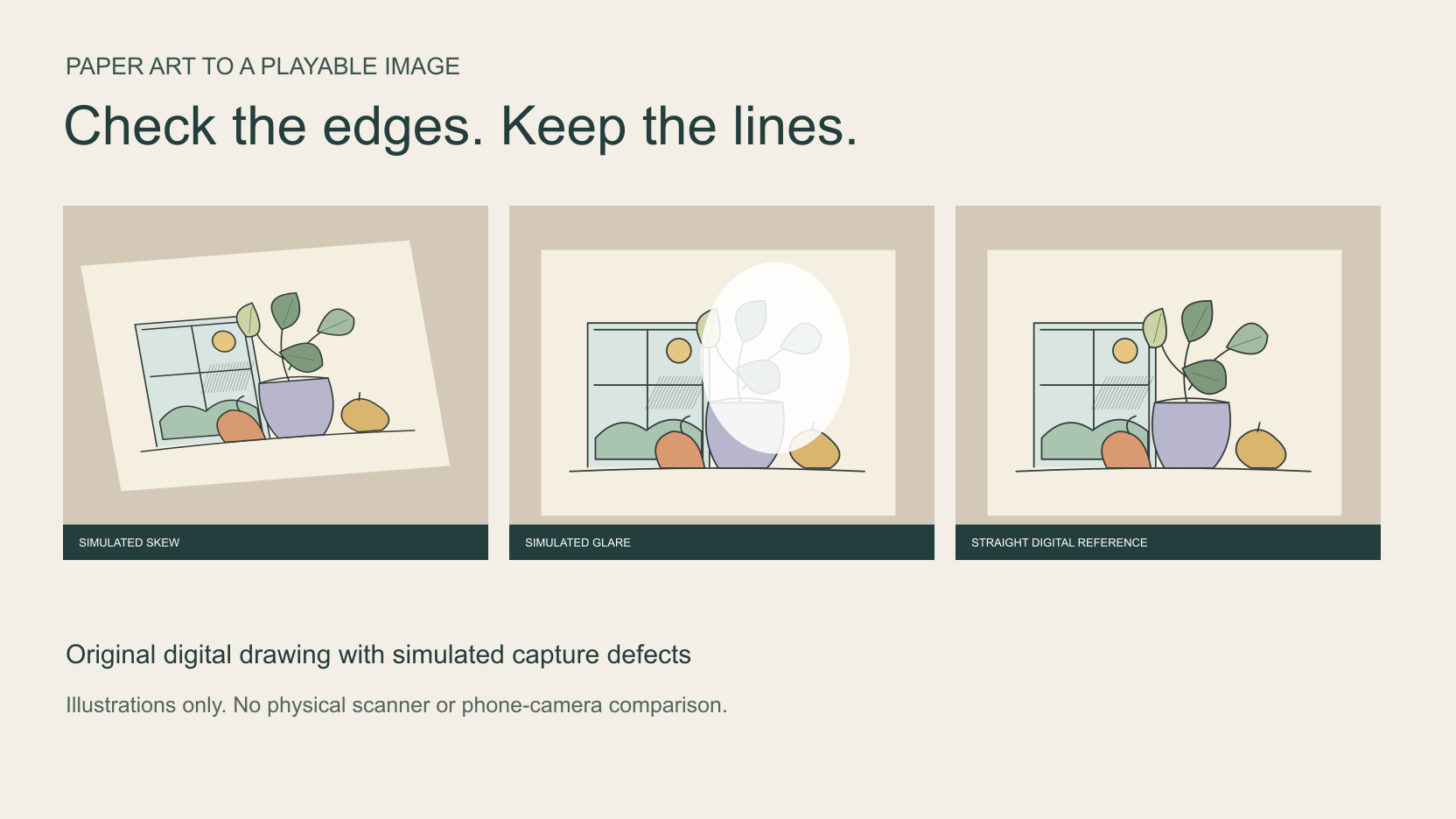
Our examples use an original digital still life made for this guide. The tilted page and bright patch are simulated, and the straight version is a digital reference. These illustrations show what to inspect. They are not photographs, physical scans or a measured comparison of a scanner and a phone.
Key takeaways
- 01Check the page shape before cropping away its edges.
- 02Inspect fine marks before accepting a cleaner-looking version.
- 03Keep the original capture and export a separate puzzle copy.
Capture the paper without glare or skew
Start with a drawing you made or have permission to reuse. We made the window, plant, vase and fruit illustration specifically for this guide. For your own work, keep the creator’s name with the capture and record any permission you needed before sharing the resulting image.
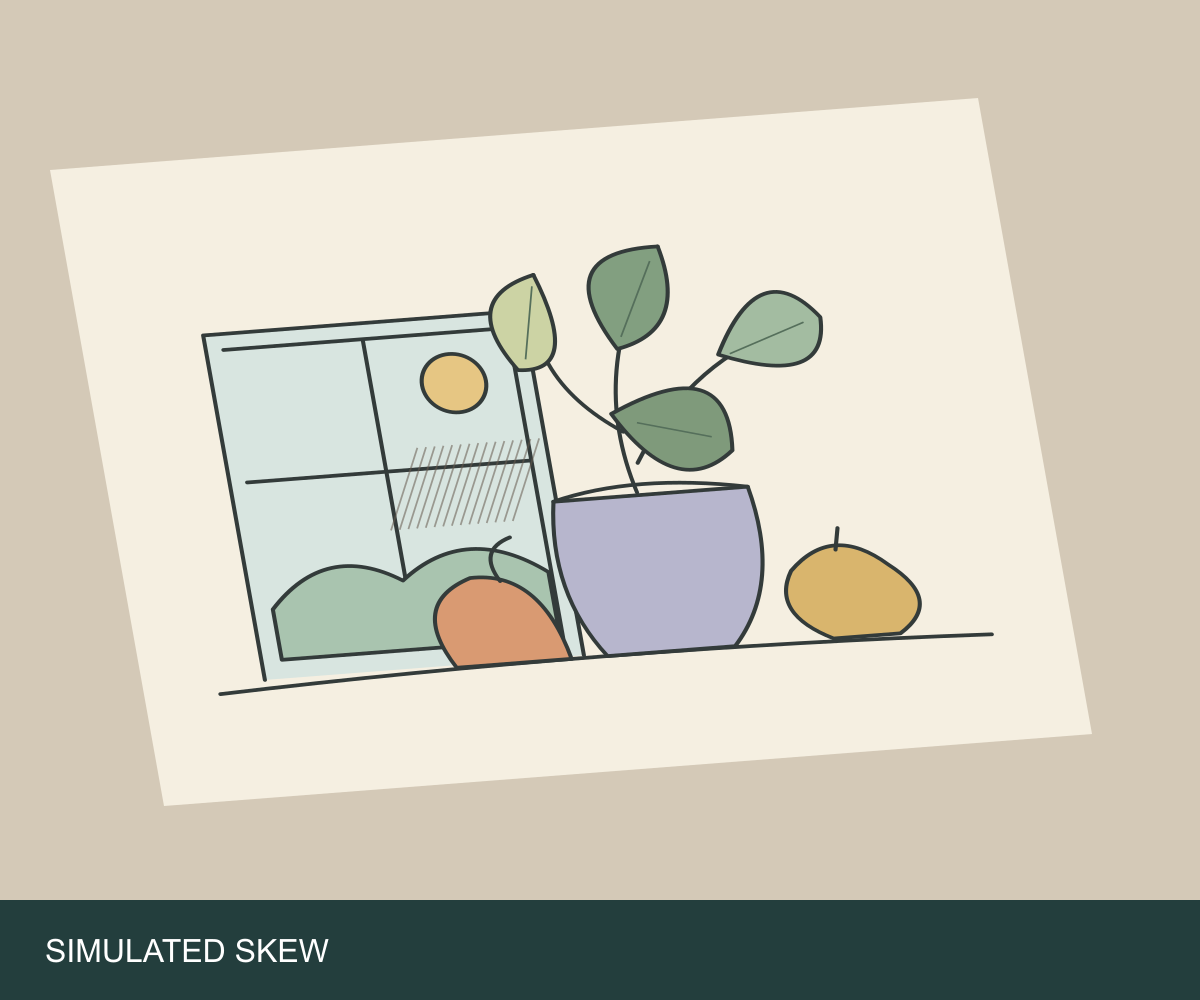
Place the whole sheet within the frame for the first capture. Keep all four corners visible so you can judge the page shape. If opposite edges seem to converge, check your camera position before trimming anything. A tight crop can hide the paper boundary that would have made the distortion obvious.
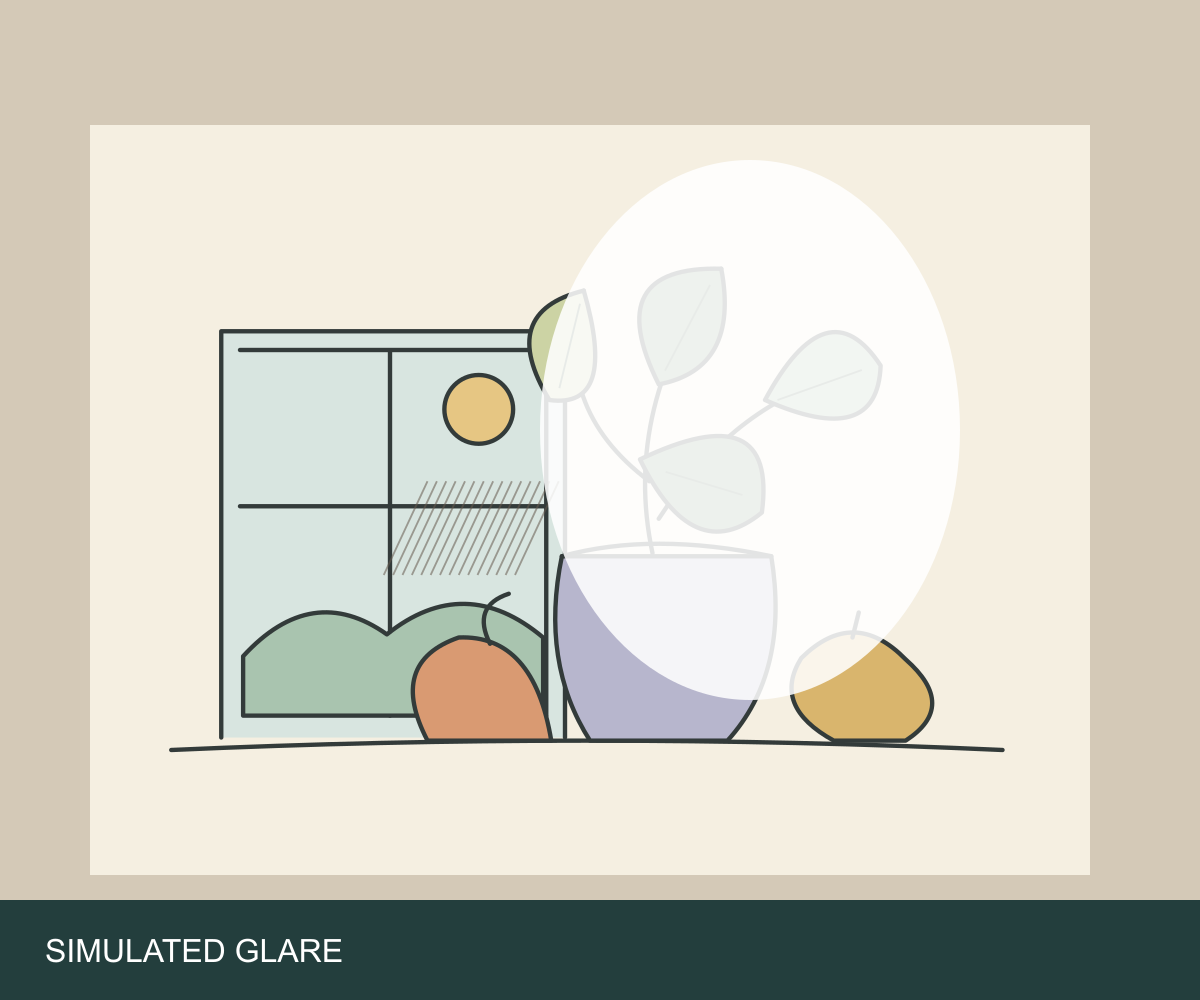
Look across the drawing for a bright area that hides pencil or ink. If a reflection crosses the work, change the lighting or capture position and compare another image. Inspect the marks themselves before deciding which capture to keep. A white-looking sheet is useful only when the drawing remains visible.
On an iPhone, Apple’s Notes instructions let you scan a document automatically or capture it manually, then adjust the corners before keeping the scan. Its user guide says the document is saved as a PDF. Check that output before bringing it to a puzzle maker that expects an image.
Clean the edges while keeping the artwork
Work on a duplicate. Leave the original capture intact so you can compare an edited edge with the drawing you started from. First correct orientation, then decide how much surrounding paper belongs in the image. Keep intentional marks near the edge, including a signature you want to retain.
Apple’s Preview guide describes cropping as selecting the area to keep and discarding the rest. On a Mac, show the Markup toolbar, choose Rectangular Selection, select the area and use Crop. Its rotate controls change orientation. A rectangular crop alone does not straighten a page photographed from an angle.
Check Apple’s instructions for cropping, resizing and rotating in Preview.
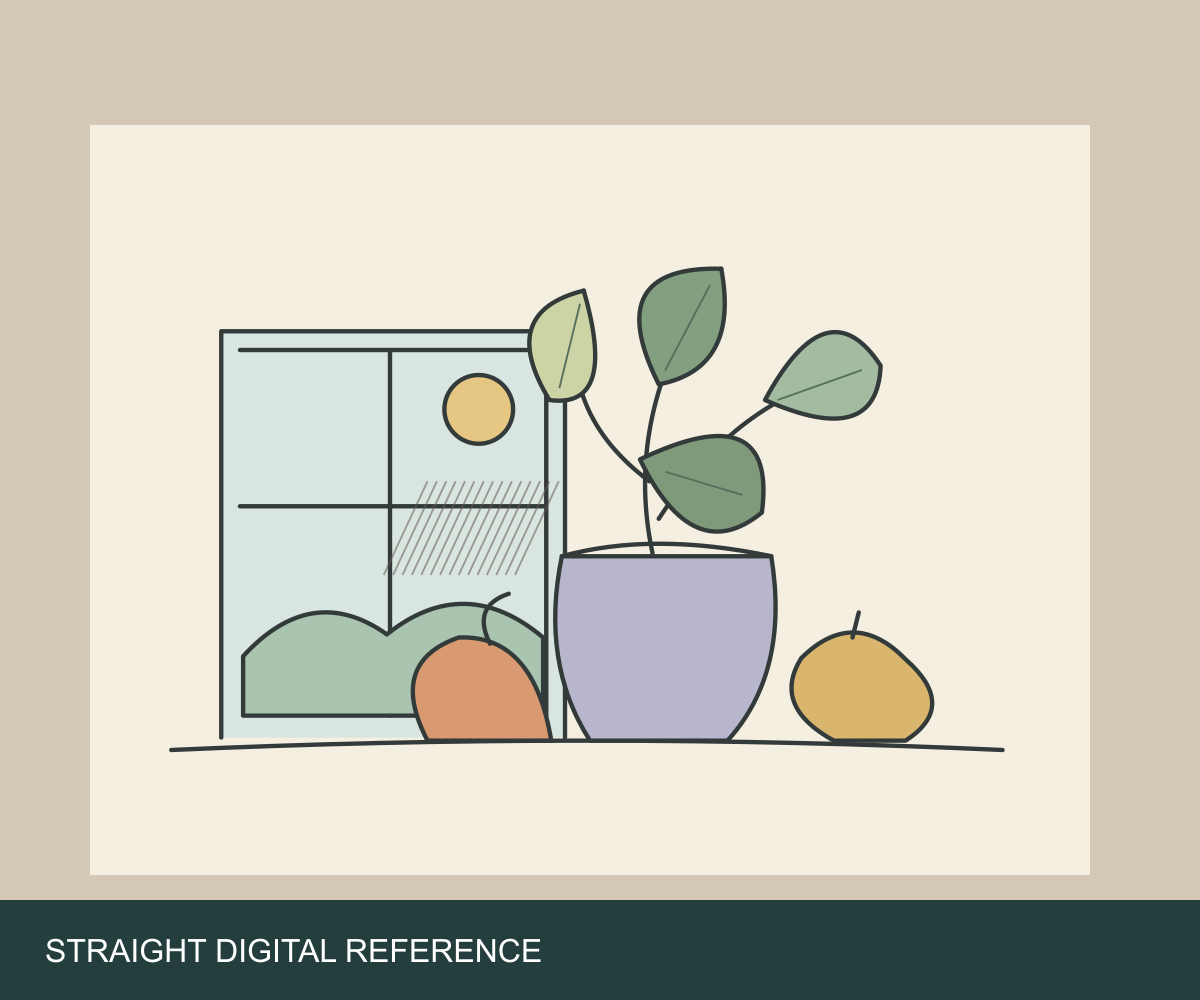
Use three small features as checkpoints. In our illustration, those are the leaf veins, the vase outline and the fine hatch marks in the window. Compare them at the same display scale in each version. If a cleanup step makes the hatching disappear, keep the earlier copy and reconsider that edit.
Use the separate framing guide when choosing how much of the finished image to keep.
Compare a scan with a phone photograph
If you have both captures of the same paper drawing, compare them side by side before choosing one. Keep the artwork, intended framing and display scale consistent. Record what each capture preserves. A device label gives you less useful information than a visible difference in the lines you care about.
| Check | What to compare | Our illustrated example |
|---|---|---|
| Page edges | Corner positions and the shape of the sheet | Skew sample has leaning edges |
| Line detail | Fine strokes at the same display scale | Glare sample obscures leaf veins |
| Finished framing | Whole subject and intentional outer marks | Straight reference retains the complete still life |
Our three samples share one digital source, which makes the added defects easy to locate. They cannot tell you which scanner, phone or lighting setup would capture your drawing better. For that decision, repeat the comparison with your own files and keep the capture settings with them.
Name the files after the steps you actually used. Keep a phone scan separate from a photograph cropped in an editor. When you return to the drawing later, those names help you find the capture with the intact edges and lines.
Prepare a finished digital copy
JigsawPuzzle.pro accepts JPEG, PNG, WEBP and supported HEIC images in its DIY flow, with a 20 MB input limit. PDF is not an accepted input. If your scanning app produced a PDF, export the artwork page as an image first. Renaming a PDF with a JPG extension does not convert its contents.
Apple’s Preview export instructions let you open a PDF or image, choose File then Export, and select a format. For an image file, its conversion guide lists JPEG and PNG among the available choices. Open the exported copy to check that it contains the drawing you intended.
Read Apple’s PDF and image export instructions.
Download the finished 1600 by 1200 JPEG illustration.
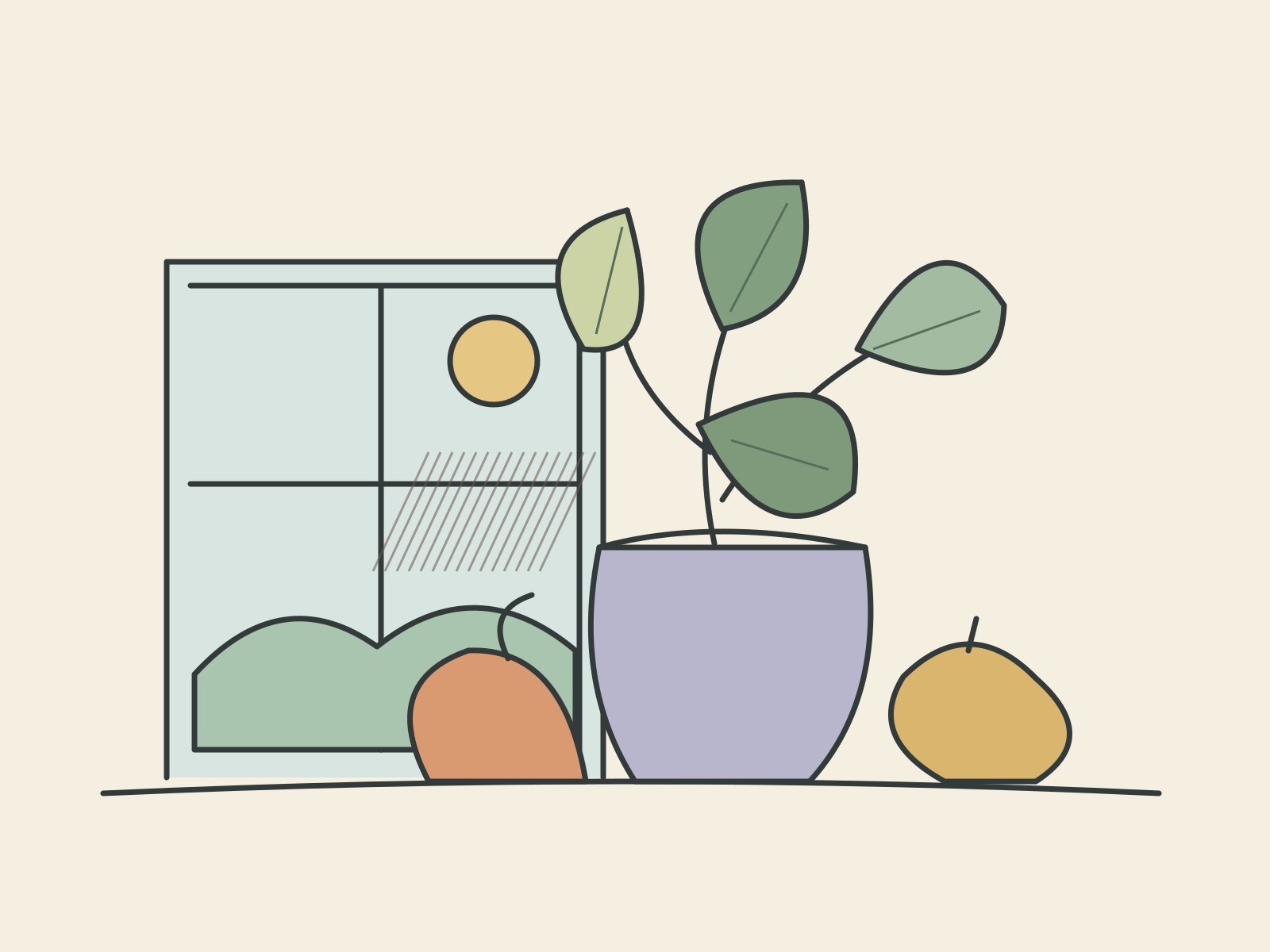
The download keeps the complete digital composition without the simulated desk or glare. Use it to inspect the window hatching and leaf outlines, then try a small board. The puzzle maker prepares a browser game from the selected file. It has no built-in paper scanner or glare-repair step.
We opened the ready JPEG as a 24-piece board in Chrome, moved one piece and displayed the complete reference. Some pieces contained only the plain paper color. Try fewer pieces first if those blank areas make sorting difficult. This check covered loading, dragging and the reference, without completing the puzzle.
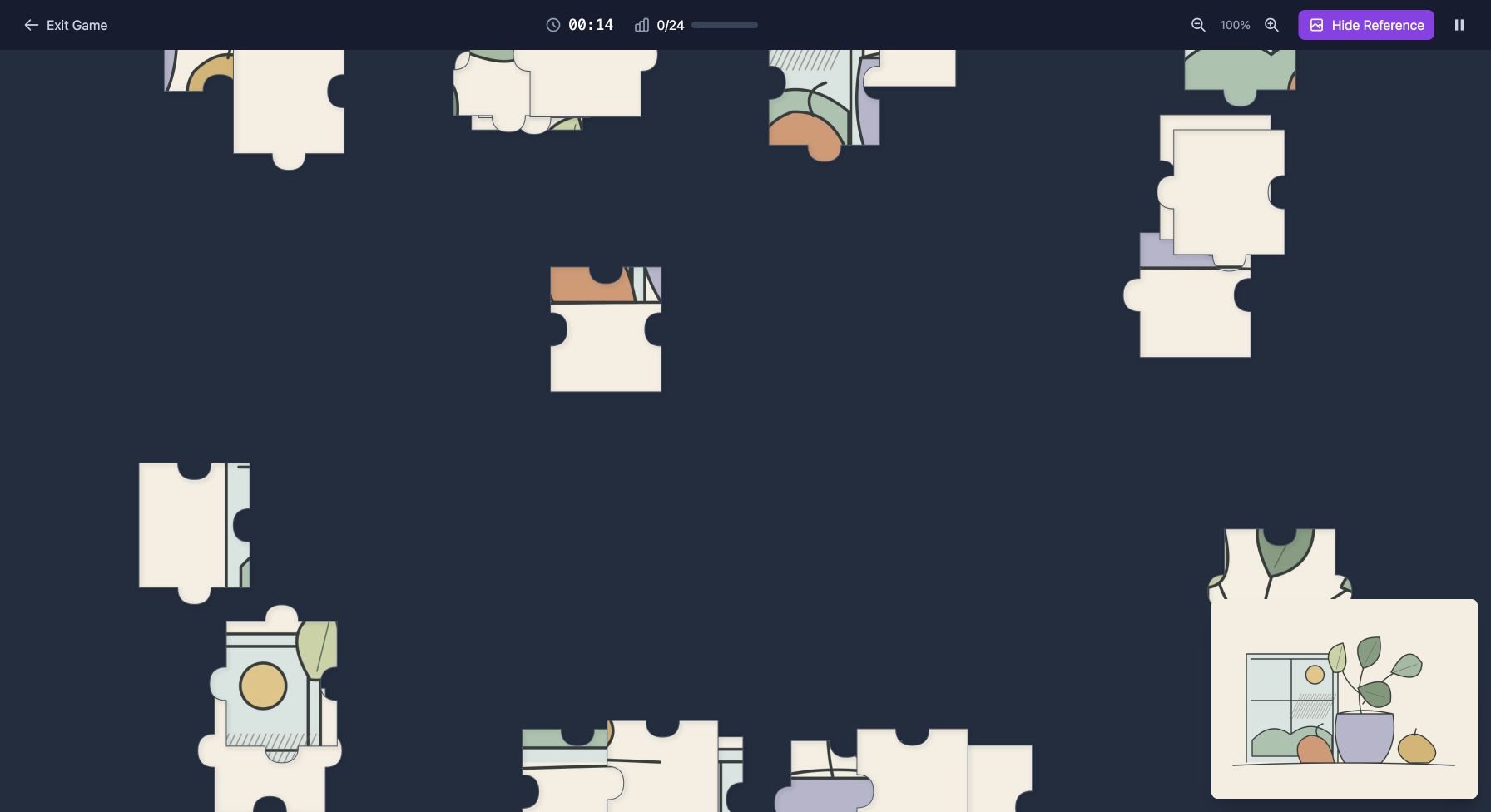
Choose your finished image in the DIY puzzle maker.
Follow the complete photo puzzle guide for the remaining game setup.
Keep the capture, edited copy and finished export under different names. The next time you want another puzzle, choose the export you already checked instead of repeating edits on the only original.
Sources and further reading
Frequently asked questions
Next move
Try the prepared image
Choose the finished file after checking its edges and fine lines.