
Play on a touch screen · Make room for the next piece
Online Jigsaw Puzzles for iPad and Tablets Without an App
Quick summary
To play online jigsaw puzzles on an iPad or tablet, open JigsawPuzzle.pro in your browser, choose a gallery picture and start a board. Move a piece with one finger. Enlarge the board with the plus button or a two-finger pinch. Drag empty board space to look around.
You can start without installing an app or creating an account. This guide focuses on the controls that make a touch screen easier to use, especially when a piece becomes hard to grab or appears to have disappeared.
Key takeaways
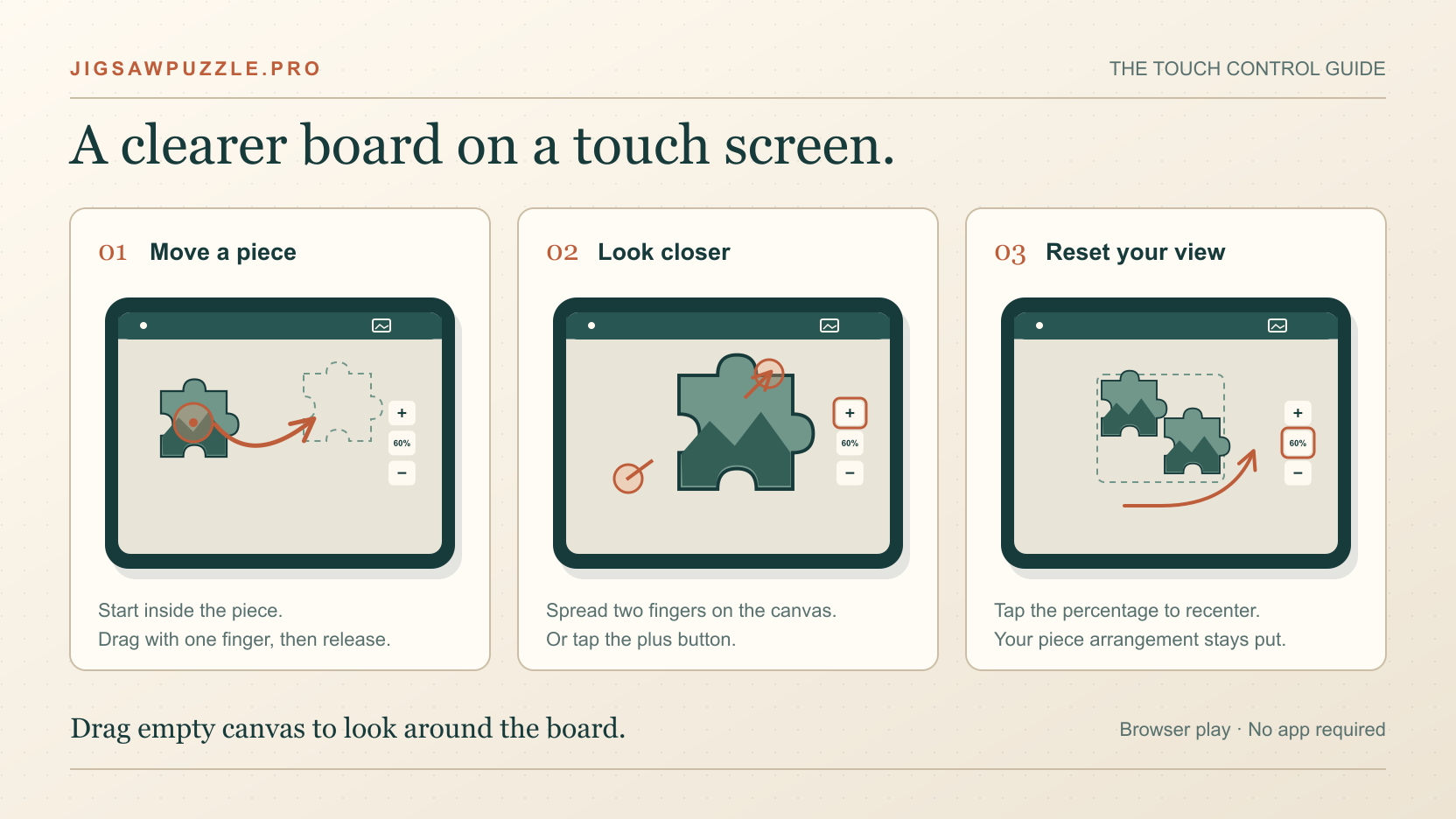
- 01Drag on a piece to move it, and on empty canvas to move your view.
- 02Use the percentage button between plus and minus to reset zoom and recenter.
- 03Hide the reference picture before working on pieces underneath it.
Give the puzzle enough screen space
Open the site in a normal browser tab and turn your tablet sideways before choosing a puzzle. Landscape gives you a wider view for spreading out pieces. On an iPad, if the screen stays upright, open Control Center from the top-right corner and check Rotation Lock. Apple lists Safari as supporting both orientations.
If you use Safari alongside another app, try giving the browser the whole display while learning the controls. Start with 12 pieces for the control check below. You can choose a larger board afterward. These browser puzzles still need an internet connection to load the site and gallery images.
Learn what each touch gesture does
Where your finger lands determines what moves. Begin in the middle of a loose piece when you want to move that piece. Begin on uncovered background when you want to pan. A joined group moves together when you drag one of its pieces.
| What you want | What to do |
|---|---|
| Move a piece | Drag it with one finger, then lift your finger to release. |
| Move around the board | Drag empty canvas space away from pieces and controls. |
| Inspect a small detail | Tap plus or spread two fingers on the canvas. |
| See a wider area | Tap minus or bring two fingers closer together. |
| Recover a centered view | Tap the percentage button between plus and minus. |
| Check the finished picture | Tap the picture icon in the top game toolbar. |
On a touch device, the board begins at a reduced scale. Reset zoom returns to that starting scale and centers the view. It preserves your piece arrangement. On a computer with a mouse, the same reset uses 100 percent, so the displayed percentage can differ between devices.
Try a short control check before solving
- 1
Move one loose piece.
Drag it a short distance into an open area. If the whole scene moves instead, your finger probably started outside the piece. Zoom in once and try its center.
- 2
Move your view.
Find uncovered background and drag there. Watch several pieces move across the screen together. Their positions relative to one another should stay the same.
- 3
Enlarge and reset.
Tap plus twice, inspect a detail, then tap the percentage button. Check that your deliberately moved piece remains where you left it relative to the others.
- 4
Open and close the reference.
Use the picture icon, then close the image. Make sure you can return to a clear canvas before starting a longer board.
Once these actions feel predictable, choose the count you want. The difficulty guide linked below covers piece counts in detail. Keep this first check short so you learn the controls without also searching through dozens of fragments.
Use board zoom and the reference picture together
Open the reference to identify one detail, such as the direction of a roof or the boundary between two colors. Close it before dragging in that area. The reference sits over the lower-right part of the game, where it can cover pieces and the board zoom controls.
Use the game’s plus button for a closer look at puzzle details. Safari also has webpage zoom in its Page Menu, which changes the page’s presentation. If the toolbar itself seems unusually large, check that browser setting separately. Enlarging the puzzle canvas gives you a more direct way to inspect a fragment.
Work at a scale where you can see the clue above your fingertip. Zoom back out when you need to carry a piece farther across the board. Repeatedly pushing toward the screen edge is harder than first making enough destination space visible.
Find a piece that seems to be missing
A zoomed view shows only part of the canvas. First close the reference picture, then tap the percentage button to recenter. If you still need a wider view, tap minus. Look around the outside of the assembled area and drag uncovered background to inspect another part of the canvas.
If a loose piece overlaps another, move the upper one into an empty area and check beneath it. If several pieces move together, they may already be joined. Inspect that group before assuming the piece was lost. When a fragment still looks unfamiliar, reopen the reference to identify the detail you are searching for.
Use view controls before reloading the page or starting another puzzle. The percentage reset changes zoom and centering, while selecting a picture from the gallery begins a new board. Those actions solve different problems.
Fix an awkward drag or an unexpected movement
| What happens | What to try |
|---|---|
| The board moves when you meant to grab a piece | Enlarge the piece and begin the drag inside its image. |
| One piece moves when you meant to pan | Start on uncovered canvas, away from puzzle shapes. |
| A likely match stays separate | Align the neighboring edges more closely, then release. |
| You cannot reach the lower-right controls | Close the reference picture that may be covering them. |
Matching neighbors join when you align and release them. Holding your finger down does not complete the drop. If they remain separate, compare the picture details and their alignment instead of repeatedly pressing harder on the glass.
When a two-finger pinch feels awkward, use the plus and minus buttons. Finish one action before starting the next. Lift your fingers after zooming, then begin a fresh one-finger drag so you can see which action the game is taking.
Conclusion
Open a small board and practice moving one piece, panning and resetting zoom. Once each action does what you expect, return to the gallery and choose the puzzle you want to spend time with.
Browser help referenced in this guide
Frequently asked questions
Next move
Try the touch controls on a small board
Open the gallery, then use the other guides when you need help choosing a count or returning to a saved game.